Screen Recorder Apk for Android Easy Recording Guide
Recording your Android screen can be useful for many different purposes. You may want to create a tutorial, record gameplay, save an online class for personal reference, demonstrate an app feature, or capture a problem on your phone. Instead of using complicated desktop software, Android users can use a reliable Screen Recorder Apk to record their device screen directly.
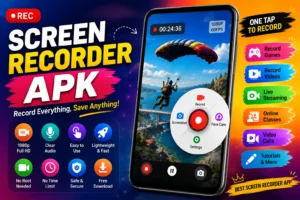
A good screen recorder should make the process simple while providing useful features such as audio recording, video-quality controls, microphone support, face-camera options, and easy file management. However, choosing and using a screen recording application requires some care, especially when installing applications from outside official app stores.
This guide explains how screen recording works on Android, what features to look for, how to install and use a Screen Recorder Apk, and how to create better-quality recordings.
What Is a Screen Recorder Apk?
A Screen Recorder Apk is an Android application package designed to capture activities displayed on your smartphone or tablet. Depending on the application, it can record the entire screen, system audio, microphone input, or even footage from the front-facing camera.
Screen recording apps are commonly used for:
- Creating Android tutorials
- Recording mobile gameplay
- Demonstrating applications
- Making educational videos
- Recording presentations
- Capturing troubleshooting steps
- Creating social media content
- Saving personal demonstrations
Modern Android versions may already include a built-in screen recording feature. If your device has one, you may not need a separate application. Third-party applications can nevertheless provide additional controls and recording options.
Why Use a Screen Recorder on Android?
There are many reasons Android users need screen recording. A built-in recorder may be sufficient for basic tasks, but specialized applications can sometimes provide more customization.
Creating Tutorials
If you frequently explain how to perform a task on Android, a screen recording is much easier to understand than written instructions alone. You can demonstrate every step while recording your voice through the microphone.
For example, you can show someone how to change a setting, install an application, manage files, or use a particular feature.
Recording Gameplay
Mobile gaming has become increasingly popular, and screen recording makes it possible to capture gameplay directly from an Android device. Depending on your phone’s hardware and the recorder’s settings, you can create smooth videos suitable for editing or sharing.
Educational Purposes
Students and teachers can use screen recordings to demonstrate applications, explain presentations, or provide visual instructions. A recorded demonstration can also be useful when someone needs to review a process later.
Troubleshooting
A screen recording can show exactly what happens when an application produces an error. Instead of describing a problem, you can record the steps and share the video with a technician or developer.
Important Features to Look For
Not every recording application offers the same capabilities. Before installing a Screen Recorder Apk, consider the following features.
Video Resolution
Resolution determines how detailed your recording looks. Common options include 720p, 1080p, and higher resolutions on supported devices.
For ordinary tutorials, 720p may be sufficient. If you want clearer gameplay or detailed demonstrations, 1080p can provide a better result.
Frame Rate
Frame rate determines how smoothly movement appears in a recording. A higher frame rate can be useful for games and other activities involving fast movement.
However, higher frame rates may require more processing power and storage space. Choose a setting that your phone can handle comfortably.
Audio Recording
Audio support is particularly important for tutorials and gameplay videos. Depending on Android’s permissions and the application, you may be able to record microphone audio, device audio, or both.
Always test audio before creating an important recording because Android versions and device manufacturers can apply different restrictions.
Microphone Support
Microphone recording allows you to explain what is happening on the screen. This is especially useful when making instructional videos.
Before recording, check whether the microphone permission is enabled and whether the application is using the correct audio source.
Front Camera
Some screen recording tools allow users to display their front-camera feed while recording the screen. This can be useful for gaming commentary, demonstrations, and reaction-style content.
If you do not need the camera, disable it to keep the video cleaner and reduce unnecessary processing.
Recording Controls
A good recorder should make starting, pausing, and stopping a recording straightforward. Floating controls, notification controls, or quick settings can make the process more convenient.
File Management
After recording, you should be able to locate, rename, share, or delete your videos easily. Check where recordings are stored before you start creating multiple files.
How to Install a Screen Recorder Apk on Android
Many Android devices can install applications directly from official stores. If you obtain an APK file from another website, you should be more cautious because APK files can potentially contain unwanted or malicious software.
Before installing any APK, verify that it comes from a trustworthy source and that the file corresponds to the application you intended to install.
A typical installation process is as follows:
Step 1: Check Your Android Version
First, open your phone’s settings and check the Android version. Some recording applications require particular Android versions or may have different features depending on the operating system.
Step 2: Choose a Reliable Source
Whenever possible, obtain applications through trusted distribution channels. Avoid unfamiliar websites that provide modified applications, suspicious installers, or files with unclear origins.
Step 3: Review Permissions
Before installation or first use, examine the permissions requested by the application. A screen recorder may legitimately need access to the microphone or storage-related functions, depending on its features.
Be cautious if an application requests permissions that appear unrelated to screen recording.
Step 4: Install the Application
If you are using an APK file, Android may display a security warning before installation. Only proceed if you trust the source and have verified the file.
After installation, open the application and complete its initial setup.
How to Use a Screen Recorder Apk
Once the application is installed, recording your screen is usually straightforward.
Step 1: Open the Recorder
Launch the recording application. You may see options for resolution, frame rate, orientation, audio, and other settings.
Step 2: Configure Recording Settings
Select the video quality that suits your needs. If your phone has limited storage or processing power, avoid choosing unnecessarily high settings.
For a basic tutorial, moderate quality is often enough. For gameplay, you may prefer higher resolution and frame rate if your device can maintain stable performance.
Step 3: Select Audio Options
Choose whether you want microphone audio, device audio, or no audio. Android’s available options may differ depending on your phone and operating-system version.
Make a short test recording before starting your main project.
Step 4: Start Recording
Tap the recording button. Android may display a confirmation message or countdown before recording begins.
After the countdown, everything supported by the recording system will be captured.
Step 5: Stop the Recording
When you finish, use the application’s stop button or notification control. The recorded file should then be saved automatically.
Open the video and check its picture quality, audio, and overall performance.
Tips for Better Screen Recordings
Using a Screen Recorder Apk is only part of creating a good video. Your phone’s settings and recording environment also affect the final result.
Clean Your Screen
Before recording, close unnecessary applications and notifications. Unexpected messages can appear in the video and distract viewers.
Enable Do Not Disturb mode when appropriate, but remember that some important notifications may also be hidden.
Free Up Storage
Video recordings can consume considerable storage space. A long recording at high resolution may create a large file.
Check your available storage before recording lengthy videos. If necessary, move older videos to another storage location.
Keep Your Phone Cool
Recording and gaming simultaneously can increase processor usage and heat. If the device becomes too warm, performance may decrease.
Avoid recording for long periods in extremely hot environments and allow the phone to cool when necessary.
Choose the Correct Orientation
Decide whether your video should be vertical or horizontal before you start. Changing orientation during recording can make the final video look unprofessional.
For many social media platforms, vertical video is appropriate. Tutorials and gameplay demonstrations may benefit from landscape orientation.
Test the Microphone
Poor audio can make an otherwise excellent recording difficult to use. Make a short test and listen to it before recording a long tutorial.
If your voice is too quiet, check microphone permissions and move to a quieter environment.
Screen Recorder Apk for Gaming
Gaming recordings require more attention because games can place heavy demands on a smartphone’s processor and graphics hardware.
Choose recording settings that your device can handle without significant frame drops. If gameplay becomes noticeably slower after recording starts, reduce the resolution or frame rate.
You can also close unnecessary background applications before starting. This may free some system resources and help maintain smoother performance.
For longer gaming sessions, monitor your device temperature and available storage.
Is Screen Recording Safe?
Screen recording itself is a normal Android function, but the application you use matters. A Screen Recorder Apk downloaded from an unknown source can create security and privacy concerns.
Before installing any application, consider the following:
- Download from a reputable source.
- Avoid suspicious modified APK files.
- Review requested permissions.
- Keep Android updated.
- Use mobile security tools when appropriate.
- Avoid applications that display unusually aggressive advertisements.
- Delete applications you no longer trust or need.
You should also remember that screen recordings may contain private information. Passwords, messages, banking details, email addresses, and other sensitive information can accidentally appear on your screen.
Privacy Tips When Recording
Privacy should always be considered before starting a recording.
Close private conversations and personal documents. Avoid entering passwords or payment information while recording. If you accidentally capture sensitive information, edit or delete the recording before sharing it.
If you are recording another person’s content or conversations, consider whether you have permission to capture or distribute it. Copyright, privacy, and platform rules can vary depending on the content and location.
Common Problems and Their Solutions
Even a good recorder can sometimes encounter problems.
Recording Stops Unexpectedly
This can happen because of insufficient storage, excessive device temperature, battery restrictions, or background-process limitations.
Free up storage, close unnecessary applications, and check whether battery optimization is restricting the recorder.
No Sound in the Recording
Check the application’s audio settings and microphone permissions. Some Android versions restrict certain types of internal audio capture.
Make a short test recording after changing the settings.
Video Looks Blurry
Low resolution or excessive compression can make recordings look blurry. Increase the recording quality if your device can handle it.
Remember that higher quality also creates larger files.
Recording Causes Lag
Recording uses system resources. If your phone struggles during recording, lower the frame rate or resolution and close unnecessary applications.
Older or lower-powered devices may need more conservative settings.
Frequently Asked Questions
1. What is a Screen Recorder Apk?
It is an Android application package designed to record activities displayed on an Android device. Depending on the application, it may also support microphone audio, system audio, and camera overlays.
2. Can I record my Android screen without an app?
Yes. Many modern Android smartphones include a built-in screen recording feature. Its availability and controls depend on the Android version and device manufacturer.
3. Is a Screen Recorder Apk free?
Some recording applications are free, while others offer free basic features and paid upgrades. Always check the application’s licensing information before using premium features.
4. Can I record gameplay on Android?
Yes. Screen recording can capture mobile gameplay. For smooth results, choose settings that match your phone’s hardware capabilities.
5. Can I record my voice while recording the screen?
Many recording applications support microphone input. You normally need to grant microphone permission and enable the appropriate audio option.
6. Why is my screen recording file so large?
Higher resolution, longer recording duration, and higher frame rates can significantly increase file size. Lowering quality settings can reduce the resulting file size.
7. Can screen recording affect phone performance?
Yes. Recording requires processor, graphics, memory, and storage resources. On less powerful devices, recording may cause lag or increased heat.
8. Why does my screen recording have no internal audio?
Android’s audio-capture capabilities vary between versions and devices. Some applications or content may also restrict internal audio recording.
9. Is it safe to install APK files?
APK files can be safe when obtained from trustworthy sources, but files from unknown websites can present security risks. Verify the source and permissions before installation.
10. Where are screen recordings saved?
The location depends on the application and Android device. Recordings are commonly stored in a dedicated folder or the phone’s video/media directory.
Conclusion
Screen recording has become a useful feature for Android users who want to create tutorials, capture gameplay, explain technical problems, or produce educational content. Choosing the right Screen Recorder Apk can make the process easier by providing controls for video quality, audio, microphone input, camera overlays, and file management.
For the best results, select recording settings that your device can handle, test audio before important recordings, maintain enough storage, and keep private information away from the recording area. Most importantly, be careful when installing APK files from outside official sources and review application permissions before granting access.
With the right settings and responsible usage, Android screen recording can be a simple and effective way to turn your phone’s display into useful video content.