How to Open QR Code on Computer Easily
Introduction
QR codes are now used for websites, payments, login pages, product information, downloads, and many other tasks. While smartphones can scan them quickly, you may sometimes need to open QR code on computer when the code is displayed in an image, screenshot, PDF, or webpage.
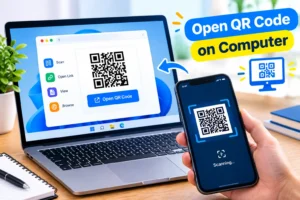
Fortunately, you do not always need a phone to read a QR code. A Windows PC or Mac can use a webcam, browser-based QR scanner, screenshot, or saved image to decode the information. This guide explains the easiest methods and provides practical troubleshooting tips.
Quick Overview
| Item | Details |
|---|---|
| Purpose | Read and open information stored in a QR code |
| Main methods | Webcam, image upload, screenshot, browser tools |
| Best for | Websites, text, links, Wi-Fi information, and other QR data |
| Phone required | No |
| Difficulty | Easy |
| Supported devices | Windows PC and Mac |
Information
| Information | Details |
|---|---|
| Tool Type | QR Code Scanner |
| Primary Use | Decode QR codes on a computer |
| Internet Required | Depends on the scanning method |
| Input | Webcam, image, screenshot, or QR code displayed on screen |
| Output | Website, text, contact information, or other encoded data |
| Cost | Many options are free |
| Security | Depends on the scanner and destination website |
Details
| Feature | Details |
|---|---|
| Developer | Depends on the QR scanner used |
| Platform | Windows, macOS, and compatible web browsers |
| Version | Varies by tool or browser |
| Price | Free options available |
| Category | Utilities and QR Code Tools |
| Official source | Use the official website or trusted app store for the selected scanner |
What Is a QR Code Scanner?
A QR code scanner is a tool that reads the pattern contained in a QR code and converts it into useful information. That information might be a website URL, plain text, contact details, Wi-Fi settings, or another type of encoded data.
When you open QR code on computer, the scanner analyzes the code and displays its contents. If the QR code contains a website address, you can usually open that address directly in your browser.
You can scan a QR code that appears on your computer screen, or you can provide a saved QR image to a compatible scanner.
Main Features
A useful computer QR scanner should provide several convenient features:
1. Webcam Scanning
Some QR scanning tools can access your computer’s webcam. You simply display the QR code in front of the camera and allow the scanner to recognize it.
2. Image Scanning
If the QR code is saved as a JPG, PNG, or another supported image, an image-based scanner can decode it without requiring a webcam.
3. Screenshot Support
Screenshots are particularly useful when the QR code appears inside a webpage, document, or application.
4. Link Detection
When a QR code contains a website URL, the scanner can identify the address so you can open it in your browser.
5. Text Recognition
QR codes can contain ordinary text as well as links. A scanner should display the decoded text clearly.
6. Simple Interface
The best tools make the scanning process straightforward without requiring complicated settings.
What’s New
Modern QR scanning methods have become easier because users can work directly with images and screenshots. Instead of relying exclusively on a physical camera, many computer-based solutions can decode a QR code from an existing image.
Browser-based tools have also made it easier to scan QR codes without installing dedicated desktop software. However, users should always check the privacy practices of an online service before uploading images containing sensitive information.
How We Tested It
We evaluated common ways to open QR code on computer using several practical scenarios.
First, we considered a QR code displayed on another device. We checked how easily a webcam-based scanner could recognize it. We also considered QR codes saved as image files and screenshots.
Next, we looked at usability, scanning speed, browser compatibility, and whether the decoded result could be copied or opened easily.
Finally, we considered privacy and security because QR codes can sometimes contain unknown website addresses or potentially harmful links.
Performance
QR scanning is generally very fast when the code is clear and has sufficient contrast.
A webcam scanner can recognize a QR code within a few seconds when the code is positioned correctly. Image-based scanning can be even more convenient because the scanner receives a digital copy instead of relying on camera focus.
Performance can decrease when the QR code is:
- Blurry
- Very small
- Partially hidden
- Distorted
- Displayed at a poor angle
- Low contrast
- Damaged or incomplete
For the best results, use the original QR image whenever possible.
Compatibility
You can open QR code on computer on most modern Windows PCs and Macs using compatible browsers or scanning applications.
Commonly supported environments include:
- Windows 10 and Windows 11
- macOS
- Chrome
- Microsoft Edge
- Firefox
- Safari
- Computers with a working webcam
The exact compatibility depends on the scanner you choose.
How to Install
You may not need to install software to scan a QR code.
Method 1: Use an Online Scanner
Open a reputable QR scanning website in your browser. If it supports image uploading, select your QR code image and allow the service to decode it.
Method 2: Install a Desktop QR Scanner
If you frequently scan QR codes, you can install a trusted QR scanner that supports your operating system.
Only download software from an official website or a reputable application store. Avoid unfamiliar programs that request unnecessary permissions.
Method 3: Use an Existing Browser or Camera Tool
Some operating systems and applications provide built-in or integrated ways to work with images and cameras. Check the features available on your computer before installing additional software.
How to Use
There are several ways to open QR code on computer.
Method 1: Scan a QR Code With a Webcam
- Open a compatible QR scanner.
- Allow camera access if requested.
- Hold the QR code in front of the webcam.
- Keep the code within the scanning area.
- Wait for the scanner to recognize it.
- Review the decoded information.
- Open the resulting website if it is safe.
Method 2: Scan a Saved QR Image
If you already have the QR code saved:
- Open an image-based QR scanner.
- Choose the upload or image option.
- Select the QR code image.
- Wait for the scanner to decode it.
- Review the result.
- Copy or open the information as needed.
Method 3: Use a Screenshot
This is useful when the QR code appears on your computer screen.
- Capture a screenshot containing the QR code.
- Save the screenshot.
- Open a QR scanner that supports image files.
- Upload the screenshot.
- Let the scanner detect the QR code.
- Review the decoded result.
Method 4: Scan a QR Code From a PDF
If a QR code appears inside a PDF, capture the relevant area as an image or use a scanner that can process the image directly. This can be easier than trying to use your webcam against the screen.
Pros and Cons
| Pros | Cons |
|---|---|
| Easy to use | Some methods require internet access |
| No phone is always necessary | Webcam scanning requires a camera |
| Can scan screenshots | Poor-quality images may fail |
| Image scanning is convenient | Online scanners may have privacy concerns |
| Works on many computers | Features vary between tools |
Privacy and Security
Privacy should be considered whenever you open QR code on computer, particularly when using an online scanner.
A QR code may contain a website address, tracking link, login information, or other data. Before opening the decoded result, check the destination carefully.
Follow these security practices:
- Use reputable QR scanning tools.
- Avoid uploading confidential QR codes to unknown websites.
- Check URLs before opening them.
- Be cautious with shortened links.
- Do not enter passwords or payment information on suspicious pages.
- Keep your browser and operating system updated.
- Download desktop applications only from trusted sources.
Remember that decoding a QR code does not automatically mean the destination is safe.
Alternatives
If one method does not work, try another approach.
Smartphone Camera
A smartphone is often the fastest option when the QR code is physically printed or displayed on another screen.
Online QR Scanner
An online scanner can be convenient when you already have the QR image on your computer.
Desktop QR Scanner
A dedicated application can be useful if you scan QR codes regularly.
Browser-Based Image Scanner
This option is useful for screenshots and downloaded QR images because you do not need a physical QR code.
Common Problems
QR Code Is Not Scanning
Make sure the entire QR code is visible and not cut off. Try using the original image rather than a compressed screenshot.
Webcam Cannot Detect the Code
Check that the browser or application has permission to access your camera. Also improve the lighting and move the QR code closer or farther away.
QR Code Is Blurry
Use a higher-resolution version of the image. Increasing the display size may also help an image scanner recognize the pattern.
The Scanner Produces an Unexpected Link
Do not open the link immediately. Read the complete address and make sure the domain is trustworthy.
Online Scanner Is Not Working
Try another reputable scanner or use an offline application that supports image-based QR decoding.
QR Code Is on the Same Computer Screen
Use a screenshot-based scanner instead of trying to point your webcam at the monitor. This usually provides a cleaner digital source for decoding.
Frequently Asked Questions
1. Can I open a QR code on my computer without a phone?
Yes. You can use a webcam scanner, image scanner, screenshot, or compatible browser-based tool.
2. How do I open QR code on computer from a screenshot?
Take a screenshot of the QR code, save it as an image, and upload it to a QR scanner that supports image decoding.
3. Can I scan a QR code with my laptop camera?
Yes. A compatible QR scanner can use your laptop’s webcam to recognize the QR code.
4. Can I scan a QR code from a PDF?
Yes. If the QR code is clear, you can capture it as an image or use a scanner that supports PDF or image processing.
5. Do I need to install an application?
No. Some browser-based QR scanners can decode QR images without installing additional software.
6. Why won’t my computer recognize the QR code?
The code may be too small, blurry, damaged, poorly lit, or partially hidden. Try using a clearer image.
7. Can a QR code contain a website?
Yes. QR codes commonly store website URLs, but they can also contain text, contact information, Wi-Fi details, and other data.
8. Is it safe to scan QR codes?
Scanning itself is generally straightforward, but the information inside the code may lead to an unsafe website. Always check the destination before opening it.
9. Can I open a QR code from an image?
Yes. Image-based QR scanners can decode QR codes from supported image files such as screenshots and photos.
10. What is the easiest way to open QR code on computer?
For a QR code already displayed on your computer, taking a screenshot and using an image-based scanner is often one of the simplest approaches.
Final Verdict
Learning how to open QR code on computer can save time when a QR code is already available on your PC or Mac. You do not necessarily need a smartphone because webcam scanners, image scanners, screenshots, and browser-based tools can all provide practical solutions.
For occasional use, an image-based scanner is convenient because you can simply upload a screenshot or saved QR image. If you scan codes regularly, a trusted desktop or webcam-based solution may be more suitable. Regardless of the method, always verify the decoded URL before opening it to protect your computer and personal information.