AI Voice Changer For OBS Easy Setup Guide for Windows Users
If you create live streams, gaming videos, podcasts, online classes, or recorded content, your voice can play an important role in keeping your audience interested. Many content creators use voice effects to make their streams more entertaining, protect their privacy, or create unique characters. An AI-powered voice changer can take this experience further by transforming your voice in real time.
Setting up an AI Voice Changer For Obs may seem complicated when you are trying it for the first time. However, the process is generally straightforward once you understand how audio input and output work. With the right configuration, you can use an AI voice changing application together with OBS Studio to modify your microphone audio before it reaches your livestream or recording.
This guide explains how to set up an AI Voice Changer For Obs on a Windows computer. It covers the basic requirements, installation process, OBS configuration, microphone settings, troubleshooting methods, and useful tips for achieving better audio quality.
Whether you are a beginner or an experienced streamer, this article will help you understand the complete setup process and make your voice effects work smoothly.
What Is an AI Voice Changer For OBS
An AI Voice Changer For Obs is a software solution that uses artificial intelligence or advanced audio processing technology to modify a person’s voice. Depending on the software, it may make your voice sound deeper, higher, robotic, cinematic, humorous, or similar to a fictional character.
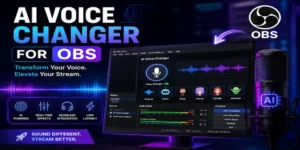
Traditional voice changers often rely on basic pitch adjustments and audio filters. AI-based systems can use more advanced processing to create more natural-sounding transformations. Some applications can analyze your voice characteristics and apply a different vocal style while attempting to maintain natural speech patterns.
When combined with OBS Studio, the modified voice can be included in livestreams and recordings. The basic audio path is usually:
Microphone → AI Voice Changer → Virtual Audio Device → OBS Studio → Stream or Recording
This setup allows OBS to capture the processed audio instead of your original microphone signal.
Why Use an AI Voice Changer With OBS
There are many reasons why streamers and content creators experiment with AI voice effects. The most common reason is entertainment. A different voice can make gaming streams, comedy videos, and character-based content more engaging.
Another reason is privacy. Some creators may not want to use their natural voice during online broadcasts. Voice transformation can provide an additional layer of separation between a creator’s real identity and their online persona.
Voice effects can also be useful for storytelling. For example, a creator might use different voices for different characters in a gaming stream or role-playing session.
Some common uses include:
- Gaming livestreams
- YouTube videos
- Twitch broadcasts
- Character roleplay
- Podcast entertainment
- Online presentations
- Comedy content
- Virtual events
- Voice acting experiments
- Creative audio projects
However, you should always use voice-changing technology responsibly. Avoid using transformed voices to impersonate real people, deceive others, or commit fraud.
What You Need Before Starting
Before configuring an AI Voice Changer For Obs, you should prepare your Windows computer and audio equipment. The exact requirements depend on the software you select, but most setups need similar components.
A Windows Computer
Your computer should have enough processing power to run OBS Studio and your voice-changing software at the same time. AI-based processing can sometimes require additional CPU or GPU resources.
If you plan to stream at high quality while applying real-time voice effects, a modern processor and sufficient memory can improve performance.
A Working Microphone
You can use a built-in laptop microphone, headset microphone, USB microphone, or professional XLR microphone connected through an audio interface.
For the best results, start with a clean microphone signal. An expensive microphone is not always necessary, but reducing background noise can make voice transformation sound more natural.
OBS Studio
OBS Studio is popular software for livestreaming and recording. It allows you to select audio sources and control how your microphone is captured.
You should install OBS Studio from its official source and ensure that your version is compatible with your Windows system.
Voice Changing Software
You will need an AI-powered voice transformation application that supports real-time audio processing. Different applications provide different voices, effects, system requirements, and virtual audio options.
Always download software from a trusted official source and review its privacy policy before installation.
How to Install Your Voice Changer on Windows
The first step in creating an AI Voice Changer For Obs setup is installing your chosen voice transformation software.
Start by downloading the application from its official website. Avoid downloading unknown installers from suspicious websites because they may contain unwanted programs or malware.
After downloading the installer, open it and follow the instructions displayed on the screen. Depending on the application, you may be asked to install additional audio drivers or virtual microphone components.
These components are important because they allow other applications to receive the transformed audio.
Once installation is complete, restart your computer if the software recommends doing so. A restart can help Windows properly register new virtual audio devices.
After restarting, open the voice changer and check whether your physical microphone is detected correctly.
Select Your Physical Microphone
Open the audio settings inside your voice-changing application. Look for an option called Input Device, Microphone, or Audio Input.
Select the microphone you normally use for communication and recording.
Speak into the microphone and watch the input level indicator. If the software displays a moving audio meter when you talk, your microphone is working.
If nothing happens, check whether Windows has permission to access your microphone. You should also verify that another application is not exclusively controlling the device.
Adjust the input volume so your voice is loud enough without constantly reaching the maximum level.
Choose an AI Voice Effect
Once your microphone is working, select a voice effect from the available options. The exact selection will depend on the software you installed.
Some applications provide voices designed for entertainment, while others offer more subtle changes. Try several options and listen carefully to the results.
A dramatic voice may be fun for a gaming character but distracting during a professional livestream. For educational or business content, a light transformation may be more appropriate.
If the application provides customization controls, experiment with them gradually. Extreme settings can sometimes produce distorted or unnatural audio.
Configure the Virtual Audio Device
The virtual audio device is one of the most important parts of an AI Voice Changer For Obs configuration.
When the voice changer processes your microphone, it needs a way to send that modified signal to OBS. This is often handled through a virtual microphone or virtual audio cable.
Open the output settings of your voice changer and locate the virtual microphone option.
The name may vary depending on the software. It could appear as a virtual microphone, virtual audio device, or another similar name.
Select the appropriate virtual output.
Next, open the Windows sound settings and verify that the virtual device is available. You can test it by checking the recording devices section.
The key idea is simple: your physical microphone should be the input to the voice changer, while the virtual microphone should become the input that OBS listens to.
How to Add the Voice Changer to OBS
After configuring your voice-changing software, open OBS Studio.
Look at the Audio Mixer section. If your microphone is already configured, you may need to change the existing device rather than adding another one.
To add the transformed voice as a new audio source, open the Sources panel and select an audio input capture source.
Give the source a clear name such as AI Voice or Processed Microphone.
When OBS asks you to select a device, choose the virtual microphone created by your voice-changing software.
Click the confirmation option and return to the main OBS window.
Now speak into your microphone. You should see the audio meter moving in the OBS Audio Mixer.
If the meter responds when you speak, OBS is receiving audio from the virtual device.
Test Your Voice Before Going Live
Before using an AI Voice Changer For Obs during a public livestream, always perform a test recording.
Create a short recording in OBS and speak normally for a few minutes. Try different sentences, speaking speeds, and voice effects.
After stopping the recording, play the file and listen carefully.
Check whether:
- Your voice is clear
- The AI effect is working correctly
- There is excessive background noise
- Your voice is too loud or too quiet
- There is noticeable delay
- The audio contains distortion
- The voice effect sounds natural enough
Testing before going live can prevent embarrassing technical problems.
How to Reduce Audio Delay
Audio delay can be one of the most frustrating problems when using real-time voice processing.
A small delay may be caused by the processing required to transform your voice. Additional delays can come from virtual audio devices, OBS filters, Bluetooth headphones, or other software.
To reduce latency, try using wired headphones instead of Bluetooth devices. Close unnecessary applications that consume significant system resources.
You can also check the settings inside your voice-changing application for performance or latency options.
If your software offers different processing modes, select the mode designed for real-time communication.
Avoid using unnecessarily complex effects if your computer struggles to process them quickly.
Improve Your Microphone Quality
Even the best voice transformation technology cannot completely fix a poor microphone signal. Before applying AI effects, try to improve the original audio.
Position your microphone at a comfortable distance from your mouth. Avoid placing it directly in front of strong sources of background noise.
Use a quiet room whenever possible.
You can also use OBS audio filters such as noise suppression, compressor, and limiter. However, avoid applying too many filters because excessive processing can make your voice sound unnatural.
A good workflow is to start with a clean microphone signal and then apply the voice transformation.
Manage OBS Audio Filters Carefully
OBS provides several audio filters that can improve your microphone output.
A compressor can help balance loud and quiet parts of your speech. Noise suppression can reduce unwanted background sounds. A limiter can prevent sudden volume peaks from becoming unpleasantly loud.
When using an AI voice effect, experiment with the order of your filters. The ideal configuration can vary depending on your voice changer.
In many cases, basic processing is enough. The goal should be clear and comfortable audio rather than using every available filter.
Common Problems and Their Solutions
Setting up an AI Voice Changer For Obs can sometimes lead to audio problems. Fortunately, many issues have simple solutions.
OBS Does Not Receive Any Audio
First, check whether your voice changer is receiving microphone input.
If the voice changer itself cannot detect your microphone, the issue is probably with the input device.
If the voice changer works but OBS receives nothing, verify that OBS is using the correct virtual microphone.
You should also check Windows privacy settings and microphone permissions.
OBS Captures Your Original Voice
If your stream still contains your natural voice, OBS may be listening directly to your physical microphone instead of the virtual output.
Open the OBS audio settings and select the virtual microphone associated with your voice-changing software.
Disable or remove the original microphone source if it is not required.
The Voice Sounds Distorted
Distortion can happen when your input level is too high or when several audio filters are processing the same signal.
Reduce the microphone gain and check the voice changer’s input level.
Also inspect OBS audio meters to make sure the signal is not constantly reaching the maximum level.
There Is Too Much Background Noise
Background noise may become more noticeable after voice transformation.
Try moving your microphone closer to your mouth while lowering the input gain. You can also use noise suppression in OBS or the voice changer.
Closing windows, fans, or other sources of environmental noise may also help.
The AI Voice Sounds Unnatural
Not every voice effect will sound realistic. Some are intentionally designed to be dramatic or humorous.
Try another voice model or reduce the intensity of the effect.
Speaking clearly and maintaining a consistent distance from your microphone can also improve the result.
Best Settings for Streaming
There is no single perfect configuration for every creator. However, a good setup should prioritize clarity, stability, and low latency.
Keep your microphone level comfortably below the maximum input range. Avoid aggressive voice effects that make your speech difficult to understand.
Monitor your CPU and GPU usage while streaming. If your computer struggles, reduce the quality of your stream or disable unnecessary applications.
You should also test your complete setup before every important broadcast.
Remember that the best AI Voice Changer For Obs setup is one that works reliably without interfering with your content.
Tips for Better Voice Transformation
You can improve your results by following a few simple practices.
First, speak naturally. AI voice systems often perform better when the original voice is clear.
Second, maintain a consistent microphone position.
Third, avoid excessive background noise.
Fourth, choose a voice that matches your content.
Fifth, test the effect at different speaking volumes.
Finally, monitor your stream audio using headphones. This allows you to hear exactly what your audience is likely to hear.
Privacy and Responsible Use
Voice-changing technology can be useful, but responsible use is important.
Never use voice transformation to impersonate someone for financial gain or to deceive people. Avoid creating misleading content that could cause harm.
You should also understand how your selected software handles voice recordings and other data. Review the application’s privacy policy before using it.
If you are streaming publicly, remember that your voice is only one part of your online identity. Avoid sharing sensitive personal information during broadcasts.
Frequently Asked Questions
What is an AI Voice Changer For Obs?
It is a voice transformation tool that processes microphone audio and sends the modified output to OBS Studio. It can be used for livestreams, recordings, gaming, and other creative content.
Can I use an AI voice changer with OBS on Windows?
Yes. Most compatible voice-changing applications can work with OBS on Windows by using a virtual microphone or virtual audio device.
Do I need a professional microphone?
No. You can start with a headset or built-in microphone. However, a better-quality microphone generally provides a cleaner input signal and can improve the final transformed voice.
Why is OBS not detecting my changed voice?
The most common reason is that OBS is using your physical microphone instead of the virtual microphone created by the voice-changing application. Check the OBS audio input settings and select the correct virtual device.
Can I use voice effects during a livestream?
Yes. If your voice-changing software supports real-time processing, you can use the transformed voice while streaming through OBS.
Does an AI voice changer cause audio delay?
It can. Real-time AI processing may introduce some latency depending on the software, hardware, and selected settings. Using wired audio equipment and reducing unnecessary processing can help.
Can I use multiple voice effects?
Many applications allow you to switch between different effects. However, using several processing layers simultaneously can increase system load and may reduce audio quality.
Why does my voice sound robotic?
A robotic sound can be caused by an unsuitable voice model, extreme effect settings, poor microphone input, or excessive processing. Try lowering the effect intensity or selecting a different voice.
Can I record my transformed voice with OBS?
Yes. Once OBS is configured to receive the virtual microphone output, the transformed audio can be included in your recordings and livestreams.
Is it safe to use AI voice-changing software?
The safety of a particular application depends on its developer, permissions, privacy practices, and download source. Use reputable software and download it from an official website whenever possible.
Conclusion
Setting up an AI Voice Changer For Obs on Windows is easier when you understand how audio travels between your microphone, voice-changing application, virtual audio device, and OBS Studio.
The most important step is selecting the correct input and output devices. Your physical microphone should provide the original audio, while the voice-changing application processes that signal and sends the transformed version through a virtual microphone. OBS then captures that virtual output for your stream or recording.
Always test your setup before going live. Check for audio delay, distortion, background noise, and volume problems. A clean microphone signal, appropriate voice effect, and properly configured OBS source can make your broadcasts sound much more professional.
Whether you want to create entertaining gaming content, develop a unique streaming personality, or experiment with creative voice effects, an AI-powered voice changer can add another dimension to your content. With careful configuration and responsible use, you can create a reliable Windows-based setup that works smoothly with OBS Studio.