How Can I Scan the QR Code for WhatsApp Easily
Introduction
scaning of qr code code is an important matter, but a question is very important, how can i scan the qr code for whatsapp easily. Scanning a QR code for WhatsApp is a simple way to connect your account to WhatsApp Web or link another device without manually entering your phone number and password. You can use your phone’s WhatsApp app to scan a code displayed on a computer or another supported device.
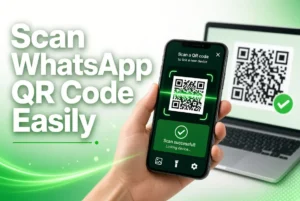
If you are wondering how can I scan the QR code for WhatsApp, this guide explains the process step by step for Android, iPhone, and computer users. You will also learn how to link devices safely, fix common scanning problems, and protect your account from unauthorized access.
Quick Overview
| Feature | Details |
|---|---|
| Tool | WhatsApp QR Code Scanner |
| Main purpose | Link WhatsApp to another device |
| Developer | WhatsApp LLC, part of Meta |
| Platforms | Android, iPhone, Windows, Mac, and web browsers |
| Internet connection | Required for linking and syncing |
| Cost | Free |
| Account required | Yes, an active WhatsApp account |
| Main requirement | Your phone’s WhatsApp app and a QR code on the device you want to link |
| Official website | https://www.whatsapp.com/ |
Information
WhatsApp QR codes make it easier to connect your existing account to a computer or another supported device. Instead of entering login details on a website, you open WhatsApp on your primary phone and use its linked-device feature to scan the displayed code.
The process is useful for people who want to send messages, share files, or manage conversations on a larger screen. However, it is important to scan only QR codes from devices and websites you trust because linking an unfamiliar device could give someone access to your WhatsApp account.
Details
| Property | Information |
|---|---|
| Application | WhatsApp Messenger |
| Feature | QR code scanning and device linking |
| Developer | WhatsApp LLC |
| Platform | Android, iOS, Windows, macOS, and supported web browsers |
| Version | Use the latest compatible version available for your device |
| Price | Free |
| Category | Communication and messaging |
| Official source | WhatsApp official website |
Developer
WhatsApp is developed by WhatsApp LLC, a company owned by Meta. Its messaging service supports personal and business communication, voice and video calls, media sharing, and linked devices.
Platform
You can scan a WhatsApp QR code using the WhatsApp app on an Android phone or iPhone. The code is generally displayed on WhatsApp Web or the WhatsApp desktop application on a computer.
Version
The exact version depends on your device and the updates available in the official app store. Update WhatsApp if you cannot find the linked-device option or if the QR scanner is not working correctly.
Price
WhatsApp and its standard QR-based device-linking feature are free to use. Internet charges from your mobile or Wi-Fi provider may apply.
Category
WhatsApp belongs to the communication and instant messaging category. Its QR code feature is designed to make account linking easier and more convenient.
Official source
Download WhatsApp or access its web version through the official website: https://www.whatsapp.com/. Avoid unofficial apps and suspicious websites that claim to offer special QR scanning features.
What Is WhatsApp QR Code Scanner?
The WhatsApp QR code scanner is a built-in feature that lets you link your WhatsApp account to another supported device. It uses your phone’s camera to read a QR code displayed on a computer, tablet, or compatible companion device.
For example, when you open WhatsApp Web on your laptop, a QR code appears on the screen. You can scan it through the Linked Devices section in WhatsApp on your phone. Once the connection is established, you can access your conversations on the linked device.
WhatsApp also supports linking devices through a phone-number verification method on supported platforms, so scanning a QR code is not always the only option.
Main Features
WhatsApp’s QR code and linked-device features offer several useful benefits.
1. Quick Device Linking
You can connect WhatsApp to a compatible computer or other supported device without entering your account password into a website.
2. WhatsApp Web Access
By scanning the QR code displayed at the official WhatsApp Web address, you can use WhatsApp in your computer’s browser.
3. Desktop Messaging
After linking your account, you can send messages, share supported files, and manage conversations using a larger screen and physical keyboard.
4. Multiple Linked Devices
WhatsApp supports linking your primary account to multiple additional devices. Standard accounts can generally connect up to four linked devices, although the available options may vary by account type and feature.
5. Account Security
You can review linked devices from your phone and log out of devices you no longer use or do not recognize.
6. No Additional Scanner App Required
You generally do not need a separate QR code scanning application to connect WhatsApp Web. The official WhatsApp app includes the necessary device-linking scanner.
What’s New
WhatsApp continues to develop its multi-device experience, making it possible to use an account across supported computers, tablets, and other devices.
Current capabilities include:
-
Expanded device support: WhatsApp supports linked devices such as Windows and Mac computers, web browsers, tablets, and compatible companion devices.
-
Phone-number linking: On supported versions of WhatsApp Web and Windows, you may be able to link a device using your phone number and a one-time code instead of scanning a QR code.
-
Independent device access: Linked devices can continue working without your primary phone remaining connected to the internet.
-
Security controls: You can check linked devices and remove unfamiliar sessions from your primary phone.
These are existing capabilities rather than a claim that every feature was newly released in 2026. Availability can depend on your device, app version, and account.
How We Tested It
This guide is based on WhatsApp’s documented device-linking process and the expected steps for connecting a phone to WhatsApp Web. It is not a claim that we conducted independent laboratory testing on every phone model.
The process can be evaluated using the following checks:
-
Open the official WhatsApp Web website on a computer.
-
Confirm that a QR code appears.
-
Open WhatsApp on the primary phone.
-
Navigate to Linked Devices and select Link a Device.
-
Authenticate with the phone’s security method if requested.
-
Scan the QR code displayed on the computer.
-
Confirm that the linked device appears in WhatsApp and that chats load successfully.
-
Review the Linked Devices section to verify that the session is recognized.
These checks help identify problems with the QR code, internet connection, app version, or device authorization.
Performance
WhatsApp’s QR code scanner is designed to make device linking quick and straightforward. Under normal conditions, scanning takes only a few seconds, although the initial synchronization may take longer.
Performance depends on several factors:
-
Camera quality: A clean camera lens and a focused image help the phone recognize the QR code.
-
Screen brightness: A clearly visible code is easier to scan.
-
Internet connection: Both devices need suitable connectivity to complete linking and synchronize messages.
-
App version: Outdated software may cause errors or display different menus.
-
Computer performance: Browser issues or a slow computer can delay loading WhatsApp Web.
If the scanner does not respond immediately, adjust the distance between your phone and the screen. Avoid taking a screenshot of the QR code and scanning it from the same phone unless you are deliberately using a supported alternative workflow.
Compatibility
WhatsApp QR code scanning works with supported versions of the WhatsApp mobile app and compatible linked devices.
| Device | Compatibility |
|---|---|
| Android phone | Supported |
| iPhone | Supported |
| Windows computer | Supported |
| Mac computer | Supported |
| Computer browser | Supported through WhatsApp Web |
| Android tablet | Supported on compatible setups |
| iPad | Supported |
| Second phone | Supported through compatible companion-device linking |
The exact requirements depend on the operating system and the WhatsApp version. For current download requirements, check the official WhatsApp download page.
How to Install
If you already have WhatsApp installed on your phone, you usually do not need to install another app to scan a QR code.
Step 1: Download WhatsApp on Your Phone
For Android, open Google Play and search for WhatsApp Messenger. For iPhone, open the Apple App Store and search for the official app.
You can also visit the official WhatsApp download page.
Step 2: Install and Open the App
Tap Install or Get, depending on your device. Open WhatsApp after the installation finishes.
Step 3: Set Up Your Account
If you are a new user, follow the on-screen instructions to register and verify your phone number. If you already use WhatsApp, open your existing account.
Step 4: Open WhatsApp Web on Your Computer
On your computer, open a supported browser and visit https://web.whatsapp.com/.
A QR code should appear if the page is ready for device linking.
Step 5: Prepare to Scan
Keep the QR code visible on your computer screen. You will scan it using WhatsApp on your primary phone rather than using the computer’s camera.
How to Use
If you are searching for how can i scan the qr code for whatsapp, follow these instructions to connect your account safely.
How to Scan a WhatsApp QR Code on Android
-
Open WhatsApp on your Android phone.
-
Tap the three-dot menu in the upper-right corner.
-
Select Linked Devices.
-
Tap Link a Device.
-
Unlock your phone or complete any requested authentication.
-
Point your phone at the QR code displayed on your computer.
-
Hold the phone steady until the code is recognized.
-
Wait for WhatsApp Web to finish connecting.
Your conversations should become available on the linked computer once the connection and synchronization are complete.
How to Scan a WhatsApp QR Code on iPhone
-
Open WhatsApp on your iPhone.
-
Open the Settings tab.
-
Tap Linked Devices.
-
Select Link a Device.
-
Authenticate using Face ID, Touch ID, your passcode, or another method if requested.
-
Point the iPhone camera at the QR code on your computer screen.
-
Wait for the device to link.
After the process succeeds, you can use WhatsApp on the newly linked device. Menu wording may differ slightly between app versions.
How to Scan the WhatsApp QR Code on a Computer
The computer displays the QR code; your primary phone scans it.
-
Open a browser on your computer.
-
Visit WhatsApp Web.
-
Wait for the QR code to appear.
-
Open WhatsApp on your phone.
-
Go to Linked Devices and choose Link a Device.
-
Scan the code with your phone.
-
Wait for the account to connect.
You can then send and receive messages from the linked computer.
How to Scan a WhatsApp QR Code From Another Phone
If you want to use your existing WhatsApp account on a second phone, check whether companion-device linking is available on both devices.
-
Install the official WhatsApp app on the second phone.
-
Open it and look for the option to link the phone as a companion device.
-
Follow the on-screen instructions until a QR code appears.
-
On your primary phone, open WhatsApp and go to Linked Devices.
-
Select Link a Device and scan the QR code shown on the second phone.
-
Complete any security verification.
Do not register your existing number as a new primary account on the second phone if your intention is to keep both phones linked to the same account. Use the companion-device option where available.
What If You Cannot Scan the QR Code?
If the camera cannot scan the code, try the following:
-
Increase the brightness of the computer screen.
-
Clean your phone’s camera lens.
-
Move the phone slightly closer to or farther from the screen.
-
Refresh the official WhatsApp Web page to generate a fresh code.
-
Update WhatsApp and your browser.
-
Check that your internet connection is working.
If the supported WhatsApp Web or Windows interface offers Link with phone number, you can use that alternative and follow the on-screen verification steps.
Pros and Cons
Understanding the advantages and limitations of WhatsApp QR code scanning can help you decide when to use this feature.
| Pros | Cons |
|---|---|
| Quick device-linking process | Requires an active WhatsApp account |
| No separate QR scanner app is usually needed | The QR code may expire or fail to scan |
| Convenient for computer messaging | Internet access is needed to link and sync |
| Supports multiple linked devices | Some features may differ between devices |
| Lets you type messages using a keyboard | Untrusted QR codes can create security risks |
| Includes linked-device management | Initial synchronization may take time |
Overall, QR code scanning is a convenient option for people who want to use WhatsApp on more than one device. The main thing to remember is to scan codes only when you know which device or account you are connecting.
Privacy and Security
WhatsApp provides security features to help protect your conversations, but users should still be careful when linking devices.
Scan Only Trusted QR Codes
Before scanning a code, make sure it appears on the official WhatsApp Web website or the official WhatsApp application. Never scan a QR code sent by an unknown person who claims they need access to your account.
Check Your Linked Devices
Open WhatsApp on your primary phone and navigate to Linked Devices. Review the list to make sure every connected computer or device is familiar.
If you notice an unknown device, select it and log out. This helps prevent someone else from continuing to access your account through that session.
Use Official WhatsApp Applications
Avoid unofficial WhatsApp clients and websites that promise extra features or easier account access. WhatsApp warns that unofficial services may put your account and personal information at risk.
Protect Your Phone
Use a strong screen lock, enable two-step verification where appropriate, and never share verification codes with strangers.
Understand What Linking Means
Linking a device gives it access to your WhatsApp account on that device. Do not approve a linking request unless you initiated it and recognize the device.
WhatsApp uses end-to-end encryption for personal messages and calls, including communications on supported linked devices. However, encryption does not protect you from someone you have authorized to access your account.
Alternatives
If scanning a QR code is not convenient, there are several alternatives worth considering.
1. Link WhatsApp Using Your Phone Number
On supported versions of WhatsApp Web and WhatsApp for Windows, you may see an option to link using your phone number.
To use it:
-
Open WhatsApp Web or the supported Windows application.
-
Select the phone-number linking option.
-
Enter your WhatsApp phone number.
-
Follow the instructions to obtain the displayed code.
-
Confirm the linking request through WhatsApp on your primary phone.
The exact steps may vary by platform. Only use the official app or website.
2. Use the WhatsApp Desktop App
If you frequently use WhatsApp on a computer, install the official desktop application from the WhatsApp download page.
You can link your account using the supported sign-in method provided by the application.
3. Use WhatsApp on Your Phone
If you only need to send messages or share files, you can continue using the regular mobile application. You do not need to link another device.
4. Use the Official WhatsApp Web Version
WhatsApp Web is a convenient option when you want to access your chats through a browser without installing a desktop application.
Best option: Use the built-in QR code scanner for the quickest setup, or choose phone-number linking if the option is available and your camera is not working.
Common Problems
Here are some common issues you may encounter when scanning a WhatsApp QR code and how to resolve them.
1. WhatsApp QR Code Is Not Scanning
Possible cause: The code is blurry, the screen brightness is low, or the camera cannot focus properly.
Solution: Increase the screen brightness, clean your camera lens, and hold your phone steady. Refresh the QR code if necessary.
2. WhatsApp Web QR Code Is Not Loading
Possible cause: A browser problem, a temporary service issue, or a weak internet connection.
Solution: Check your internet connection, refresh the page, and try another supported browser. Make sure you are visiting the official WhatsApp Web website.
3. Linked Devices Option Is Missing
Possible cause: Your app may be outdated, or the interface may differ from the instructions.
Solution: Update WhatsApp through the official app store and look in the Settings or menu section. Restart the app if the option still does not appear.
4. WhatsApp QR Code Has Expired
Possible cause: The displayed code is no longer valid.
Solution: Refresh WhatsApp Web or reopen the desktop application to display a new code, then scan it again.
5. WhatsApp Is Not Connecting After Scanning
Possible cause: A weak internet connection or a temporary problem with the app or browser.
Solution: Check connectivity on both devices, update the relevant software, and retry the linking process.
6. WhatsApp QR Code Is Blurry
Possible cause: The computer screen is dirty, the display is scaled incorrectly, or the phone is too close to the screen.
Solution: Clean the screen, adjust your phone’s distance, and ensure that the entire QR code is visible.
7. WhatsApp Shows an Unknown Linking Request
Possible cause: Someone may be attempting to link another device to your account, or you may have started a linking process you do not recognize.
Solution: Do not approve the request. Cancel it and check your Linked Devices list for unfamiliar sessions.
8. WhatsApp Web Logs Out Unexpectedly
Possible cause: A session issue, an app update, or an inactive linked device.
Solution: Reopen the official WhatsApp Web website and link your device again. If the issue continues, update WhatsApp and check the official Help Center.
Frequently Asked Questions
1. How can I scan the QR code for WhatsApp?
Open WhatsApp on your phone, navigate to Linked Devices, and tap Link a Device. Unlock your phone if requested, then point its camera at the QR code displayed on WhatsApp Web or another supported device.
2. How do I scan a WhatsApp QR code on an iPhone?
Open WhatsApp on your iPhone, tap Settings, select Linked Devices, and choose Link a Device. Authenticate if requested, then scan the code shown on your computer or compatible device.
3. How do I scan a WhatsApp QR code on Android?
Open WhatsApp, tap the three-dot menu, select Linked Devices, and tap Link a Device. Unlock your phone if necessary and scan the QR code displayed on the device you want to connect.
4. Can I scan a WhatsApp QR code using the same phone?
You generally cannot use the same phone’s camera to scan a QR code displayed on its own screen. For device linking, use your primary phone to scan the code displayed on a computer or another compatible device. If you are trying to open a QR code saved as an image, you may need to display it on another screen or use an appropriate image-scanning method.
5. Do I need to download a separate QR code scanner for WhatsApp?
No. You generally do not need a separate scanner application to link WhatsApp Web. The official WhatsApp app includes the scanner in its Linked Devices feature.
6. Is it safe to scan a WhatsApp QR code?
Yes, when you scan a code displayed by an official WhatsApp service or a device you trust. Be cautious with unfamiliar codes because approving an unexpected linking request could allow another device to access your account.
7. Why is my WhatsApp QR code not working?
The code may have expired, your internet connection may be unstable, or the camera may not be focusing correctly. Refresh the code, clean the camera lens, adjust the distance, and update WhatsApp if necessary.
8. Can I use WhatsApp Web without scanning a QR code?
On supported versions of WhatsApp Web and Windows, you may be able to select Link with phone number and complete the verification process using a one-time code. Availability depends on the platform and version.
9. Can I use the same WhatsApp account on two phones?
Yes. WhatsApp supports companion-device linking on compatible phones. Use the companion-device option on the second phone and scan its QR code using the primary phone’s Linked Devices feature.
10. How can I log out of a linked WhatsApp device?
Open WhatsApp on your primary phone and select Linked Devices. Choose the device you want to disconnect, then tap Log Out. This is particularly important if you no longer use the device or do not recognize it.
11. Can I scan a WhatsApp QR code without an internet connection?
You may be able to open the scanner, but completing device linking and synchronizing chats requires an internet connection. Connect your phone and computer to a reliable network before trying again.
12. Where can I find the official WhatsApp Web QR code?
Open https://web.whatsapp.com/ in a supported browser on your computer. Follow the on-screen instructions to display the code, then scan it using WhatsApp on your phone.
Final Verdict
Learning how can i scan the qr code for whatsapp is straightforward once you know where to find the Linked Devices option. Open WhatsApp on your Android phone or iPhone, select Link a Device, and scan the QR code displayed on your computer or another compatible device.
This feature makes messaging more convenient by letting you use WhatsApp on a larger screen without setting up a separate account. If the code does not work, check your internet connection, refresh the code, and update your application.
Most importantly, use only official WhatsApp services and review your linked devices regularly. Following these simple precautions will help you enjoy convenient messaging while keeping your account more secure.