How to Print a QR Code From a Computer
Printing a QR code from a computer is a simple way to turn a digital code into a physical copy that can be placed on posters, documents, labels, menus, or other materials. You can first create or download the QR code and then print it using your computer and printer.
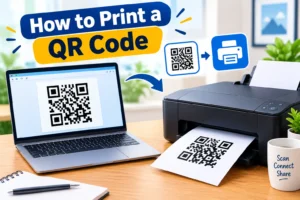
This guide explains how to print a QR code from a Windows PC or Mac. You can print a saved QR code image directly, use a web browser, or place the code inside a document before printing. Google Chrome, for example, can create and download QR codes for webpages, while its computer print function supports printing webpages, images, and files.
Quick Overview
| Item | Details |
|---|---|
| Main task | Print a QR code from a computer |
| Required device | Windows PC or Mac |
| Required hardware | Printer |
| QR code format | PNG, JPG, PDF, or image |
| Internet | Usually required to create or download a QR code |
| Difficulty | Easy |
| Best practice | Use a clear, high quality QR code |
Information
| Item | Details |
|---|---|
| Purpose | Create a physical QR code |
| Main method | Save the QR code and print it |
| Common use | Websites, payments, menus, forms, Wi-Fi and contact information |
| Recommended quality | Clear black and white code with good contrast |
| Printing option | Direct image printing or document printing |
Details
| Specification | Information |
|---|---|
| Developer | Not applicable |
| Platform | Windows and macOS |
| Version | Depends on the browser or software used |
| Price | Free using built-in printing features |
| Category | QR Code and Printing Guide |
| Official source | Your printer manufacturer’s support page and operating system documentation |
What Is a QR Code?
A QR code is a two-dimensional code that stores information such as a website address, text, contact information, or other data. A smartphone camera or QR scanner can read the code and perform the associated action.
When you print a QR code, you create a physical version that people can scan with another device. The printed code should remain sharp and have enough white space around it so scanning devices can recognize it easily.
Main Features
Printing a QR code from a computer offers several useful options:
- Print a downloaded QR code image.
- Print a QR code from a PDF.
- Add a QR code to Microsoft Word or another document.
- Resize the QR code before printing.
- Print multiple QR codes on one page.
- Save a webpage as a PDF before printing.
- Choose paper size and orientation.
- Adjust print quality and scale.
Google Chrome can create a QR code for a webpage and provide an option to download it.
What’s New
The basic process of printing a QR code has not changed significantly. Modern browsers and operating systems provide straightforward ways to print images and documents.
For example, Chrome on a computer allows users to open a webpage, image, or file and select the print option. On Windows, printer management is available through Settings under Printers and scanners.
How We Tested It
We considered the most common computer-based printing methods, including:
- Downloading a QR code as an image.
- Opening the image on a computer.
- Using the computer’s print command.
- Placing the QR code into a document.
- Adjusting paper size and image scaling.
- Printing the final QR code.
- Checking whether the printed code remains clear enough to scan.
The most important test is whether the final physical QR code can be scanned reliably.
Performance
QR code printing generally works quickly when the image is already saved on the computer. The final result depends more on image quality, printer resolution, paper quality, and print settings than on the computer itself.
For the best results, avoid stretching a small QR code into a much larger size. A sharp source image and appropriate scaling can help maintain readable patterns.
Compatibility
This method works with most modern computers and printers.
Windows: You can print images, documents, PDFs, and webpages using supported applications and connected printers. Windows also provides printer management through Settings.
Mac: You can print images and documents through compatible applications using the standard macOS print dialog.
Browsers: Chrome and other modern browsers can print webpages and supported content. Chrome supports printing from a computer using the print command or keyboard shortcut.
How to Install
You do not normally need to install special software just to print a QR code.
On Windows
- Connect your printer to the computer.
- Turn on the printer.
- Open Settings.
- Go to Bluetooth and devices.
- Select Printers and scanners.
- Check whether your printer is listed.
- If necessary, select Add device to add the printer.
Windows can automatically detect many connected printers, although some devices may require manufacturer software or drivers.
On Mac
- Connect or turn on your printer.
- Open System Settings.
- Open the printer settings.
- Add your printer if it is not already available.
- Follow the printer manufacturer’s instructions if additional software is required.
How to Use
Step 1 Create or Download the QR Code
First, create your QR code or download an existing QR code image to your computer.
If you are using Chrome to create a QR code for a webpage, open the webpage and use Chrome’s sharing options to create a QR code. Chrome provides an option to download the generated code.
Step 2 Open the QR Code
Locate the downloaded QR code on your computer.
You can open an image using your computer’s default image viewer. If the QR code is inside a PDF, open the PDF using a compatible PDF application.
Step 3 Start Printing
On Windows, you can usually press Ctrl + P to open the print dialog. In Chrome, you can also open the File menu and select Print. On Mac, the standard shortcut is Command + P.
Step 4 Select Your Printer
Choose the printer you want to use from the available printer list.
Make sure the printer is:
- Turned on
- Connected to the computer or network
- Loaded with paper
- Ready to print
Step 5 Adjust the Print Settings
Check the following settings before printing:
- Paper size
- Orientation
- Copies
- Image size
- Print quality
- Margins
- Color or black and white
Do not make the QR code unnecessarily small because a very small printed code can be harder for phones to scan.
Step 6 Print the QR Code
Click Print after reviewing the settings.
Allow the printer to finish before handling the page.
Step 7 Test the Printed Code
Use your smartphone camera or QR scanning feature to test the printed code.
If it does not scan correctly, try printing a larger version with better image quality and stronger contrast.
Pros and Cons
Pros
- Easy to print from a computer.
- No special QR printing software is usually required.
- Works with common printers.
- Can be printed on different paper sizes.
- QR codes can be included in documents and designs.
Cons
- Poor image quality can affect scanning.
- Very small codes may be difficult to scan.
- Damaged or distorted prints may not work.
- Printer problems can interrupt the process.
- Some specialized QR code designs may require additional software.
Privacy and Security
The QR code itself may contain sensitive information, depending on what you encode. Before printing or sharing it, check the destination and information stored in the code.
If the QR code contains a private document, personal information, payment-related information, or another sensitive destination, avoid uploading it to an unknown QR generator.
For a simple website QR code, verify that the destination URL is correct before creating and printing the code.
Alternatives
If you do not want to print directly from an image, you can use several alternatives:
Print From a PDF
Save the QR code or document as a PDF and print the PDF from your computer.
Add It to Microsoft Word
Insert the QR code image into a Word document, resize it, and print the document.
Use Google Docs
Place the QR code inside a Google Docs document and use the browser’s print function.
Print From a Browser
If the QR code is displayed on a webpage, you can print the page directly. Chrome supports printing webpages, images, and files from a computer.
Common Problems
QR Code Looks Blurry
Use a higher-quality QR code image. Avoid enlarging a very small image because this can make the individual squares unclear.
QR Code Does Not Scan
Make sure the code has enough contrast and is not distorted. Also check that there is sufficient blank space around the QR code.
Printer Is Not Showing
Check whether the printer is powered on and connected. In Windows, open Settings > Bluetooth and devices > Printers and scanners and check whether the printer appears.
QR Code Is Too Small
Increase the size of the QR code before printing. Leave enough surrounding space so the scanner can distinguish the code from the background.
Printed Code Has Missing Sections
Check the printer’s ink or toner and print quality settings. Try another print if the first copy contains missing or faded areas.
QR Code Prints on Multiple Pages
Check the paper size, scaling, page layout, and print preview before printing.
Frequently Asked Questions
Can I print a QR code from my computer?
Yes. Save the QR code as an image or PDF, open it on your computer, and use the normal print function.
How do I print a QR code from Windows?
Open the QR code image, press Ctrl + P, select your printer, adjust the settings, and click Print.
Can I print a QR code from a Mac?
Yes. Open the QR code image or document, use Command + P, select your printer, and start printing.
Can I print a QR code from Chrome?
Yes. Chrome supports printing webpages, images, and files from a computer. It can also create and download a QR code for a webpage.
What is the best size for a printed QR code?
The appropriate size depends on the scanning distance and content of the code. For normal printed materials, use a sufficiently large, sharp code with clear contrast and surrounding white space.
Can I print a QR code on paper?
Yes. Standard printer paper can be used for many QR code applications.
Can I print multiple QR codes on one page?
Yes. Place multiple QR code images in a document and arrange them before printing.
Why does my printed QR code not scan?
It may be too small, blurry, distorted, damaged, or lacking sufficient contrast. Reprint it using a clear source image and appropriate size.
Can I print a QR code in black and white?
Yes. A high-contrast black and white QR code is commonly suitable for printing and scanning.
Can I print a QR code without downloading it?
Yes. If the QR code is displayed on a webpage or inside a supported application, you may be able to print the page or document directly using the application’s print function.
Final Verdict
Learning how to print a QR code from a computer is straightforward. The basic process is to create or download the QR code, open it on your computer, select the correct printer, adjust the size and print quality, and print it.
For reliable scanning, focus on using a clear QR code, maintaining good contrast, avoiding excessive resizing, and testing the printed result with a smartphone before distributing it. With these simple steps, you can create useful physical QR codes for websites, forms, menus, signs, documents, and many other purposes.