How to Scan a QR Code on Your Own Phone
Introduction
QR codes make it easy to open websites, access menus, connect to Wi-Fi, and share information. However, scanning a QR code becomes confusing when the code is already saved as an image on the same phone you want to use for scanning.
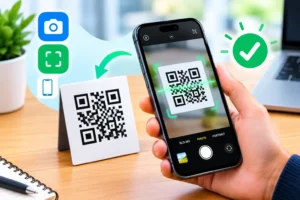
Learning How to Scan a QR Code on Your Own Phone can save time because you do not always need a second device or another camera. Depending on your phone, you can scan a saved screenshot or picture using Google Lens, Google Photos, Google app tools, or the built-in Photos app on an iPhone.
Quick Overview
| Feature | Details |
|---|---|
| Purpose | Scan a QR code saved on your phone |
| Supported devices | Android phones and iPhones |
| Main methods | Google Lens, Google Photos, Apple Photos |
| Internet connection | Usually needed to open online links |
| Additional equipment | Not required |
| Cost | Free with supported built-in tools |
| Best for | Screenshots, saved pictures, and downloaded QR codes |
Information
This guide explains practical ways to scan QR codes from pictures stored on your device. The exact steps depend on your phone model, operating system, and installed apps.
You can usually scan a saved QR code without printing it or displaying it on another screen. Before opening a detected link, check that the destination is trustworthy, particularly if the QR code came from an unknown person or website.
Details
| Detail | Information |
|---|---|
| Developer | Google or Apple, depending on the tool |
| Platform | Android and iOS |
| Version | Depends on the installed app and operating system |
| Price | Free for the methods described |
| Category | QR code scanning and image recognition |
| Official source | Google Lens: https://lens.google/ |
| Apple support | https://support.apple.com/ |
Developer
There is no single developer for this process because several tools can recognize QR codes in saved images. Google Lens is developed by Google, while Apple’s Photos and other built-in features are developed by Apple.
Some Android phones also include manufacturer-specific gallery or image-recognition features.
Platform
The process works on many Android phones and iPhones. Android users can often use Google Lens or Google Photos, while iPhone users can try the Photos app’s built-in recognition features.
The available options may vary by device, app version, and operating system.
Version
There is no single version number for scanning a QR code from a saved image. Google Lens, Google Photos, and Apple Photos receive updates separately.
For the best experience, keep your phone’s operating system and relevant apps updated.
Price
The methods explained in this guide are generally free. You do not normally need to purchase a separate QR code scanner or subscribe to a premium service to read a standard QR code from an image.
Category
This process falls under QR code scanning, image recognition, and mobile productivity. It is useful for accessing website links, contact details, Wi-Fi information, and other data encoded in QR images.
Official source
For Google’s image-recognition tools, visit Google Lens. For iPhone features and support, visit Apple Support.
Use official app stores when installing additional tools, and avoid downloading unknown scanner applications from untrusted websites.
What Is Scanning a QR Code From Your Own Phone?
Scanning a QR code from your own phone means identifying a QR code inside a saved photo, screenshot, or downloaded image rather than pointing your camera at a code displayed on another device.
For example, someone may send you a QR code through WhatsApp, email, or a messaging app. You save the picture, but the code is now on the same phone you are using. An image-recognition tool can analyze the picture and extract the information stored in the QR code.
This is different from using your camera to scan a printed QR code. Instead of capturing a new image, the tool reads an existing one.
Main Features
The available features depend on the app you use, but most image-based QR scanning methods offer several useful capabilities.
1. Scan Saved Images
You can select a screenshot or picture from your gallery instead of using the live camera. This is especially helpful when a QR code arrives in a chat message.
2. Open Website Links
If the QR code contains a website address, a compatible scanner can recognize the link and offer to open it in your browser.
3. Read QR Codes From Screenshots
A screenshot can contain a QR code just like an ordinary photograph. As long as the code is clear enough, an image-recognition tool may be able to read it.
4. Work Without a Second Phone
You do not need to borrow another phone or use a computer to display the code. You can often complete the process using tools already installed on your device.
5. Support Different Types of Information
QR codes can contain website addresses, text, contact details, Wi-Fi information, and other data. What you can do with the result depends on the information encoded in the code.
6. Reduce the Need for Extra Apps
Google Lens, Google Photos, and Apple Photos may provide the functionality you need. The availability of a particular feature depends on your device and software version.
What’s New
There is no single new release associated with this method because it uses existing phone features rather than one specific QR scanning application.
Google and Apple periodically update their image-recognition and photo-management tools. Menu names, supported actions, and the location of scanning features can change between versions.
To check the current options on your phone, update the relevant app through the official app store and look for image-search, Lens, or visual-recognition controls. If a feature is missing, use another method described below.
How We Tested It
This guide is based on the standard workflow for scanning QR codes from saved images on supported mobile devices. The instructions explain the available methods without claiming that every feature was independently tested on every phone model.
A practical check should include the following steps:
- Save a clear QR code image to the phone.
- Open a compatible image-recognition tool.
- Select the saved image or screenshot.
- Check whether the tool identifies the QR code.
- Review the detected information before opening any link.
- Repeat with a different image if the first attempt fails.
For a reliable result, use a QR code with sharp edges, good contrast, and no major obstructions.
Performance
Scanning performance depends mainly on image quality and the recognition tool. Clear, high-resolution QR codes are usually easier to read than blurry, cropped, or heavily compressed images.
The process may take only a few seconds when the image is clear and the correct tool is available. However, damaged codes, unusual designs, poor contrast, and unsupported formats can make recognition more difficult.
A phone generally does not need a powerful processor for a simple QR code. More complex image-processing features may take longer, especially on older devices.
Compatibility
The process is supported on many modern Android phones and iPhones, but the exact method varies.
| Device | Recommended method |
|---|---|
| Android with Google Lens | Select the saved image in Lens |
| Android with Google Photos | Open the picture and look for Lens |
| iPhone with supported Photos features | Open the image and check for recognized QR actions |
| Older Android phone | Try an updated Google Lens app or another trusted scanner |
| Older iPhone | Try an available image-recognition feature or a trusted QR app |
Some tools require an internet connection for particular features. Basic recognition availability may also vary according to the app, device, and software version.
How to Install
You may not need to install anything. First, check whether your phone already has a compatible tool.
On Android
- Open Google Photos or Google Lens if it is already installed.
- Check whether you can select a saved image for analysis.
- If the required tool is missing, open the Google Play Store.
- Search for Google Lens or Google Photos.
- Confirm the developer and install the official app if available for your device.
Google Lens may also be accessible through Google Photos or the Google app, depending on your device.
On iPhone
- Open the App Store.
- Check whether Google Photos or the Google app is already installed.
- If you need an additional tool, search for the official app.
- Verify that the developer is Google before installing a Google app.
- Open the app and allow access to the selected photo when prompted.
You can also try Apple’s built-in Photos features before installing anything new.
How to Use
The easiest method depends on whether you use Android or an iPhone. The following steps explain the most common options.
Method 1: Use Google Lens on Android
Google Lens is a convenient option for recognizing QR codes stored as images.
- Open Google Lens on your Android phone.
- Tap the image or gallery option, if available.
- Choose the screenshot or saved picture containing the QR code.
- Wait for Lens to analyze the image.
- Tap the recognized link or information if it appears.
- Review the destination before proceeding.
If the image picker does not appear, open Google Photos and select the picture there. Look for the Lens option in the available controls.
Method 2: Use Google Photos
Google Photos can provide access to Lens on supported devices.
- Open Google Photos.
- Find the picture containing the QR code.
- Tap the image to view it.
- Select Lens if the option appears.
- Wait for the tool to identify the code.
- Review the detected result and open it only if you trust it.
This method is helpful when someone sends a QR code through a messaging app and you save the image to your gallery.
Method 3: Use Apple Photos on an iPhone
Some iPhones can recognize QR codes in images using built-in visual-recognition features. The exact controls depend on the iOS version and image.
- Open the Photos app.
- Select the saved screenshot or QR code picture.
- Look for a recognized QR code indicator or available action.
- Tap the recognized code or link if your iPhone provides that option.
- Check the destination before opening it.
If Photos does not recognize the code, try Google Lens through a compatible Google app or another trusted image-based scanner.
Method 4: Use a Trusted QR Scanner App
If your built-in tools cannot recognize the image, a reputable scanner may offer an option to import a photo.
- Open your device’s official app store.
- Find a QR scanner with an image-import feature.
- Check its developer, reviews, and requested permissions.
- Install and open the app.
- Select the saved QR code image.
- Review the result before visiting a website.
Not every QR scanner supports importing pictures, so check the app description before installing it.
Method 5: Use a Browser or Search App
Some versions of Google apps provide Lens or image-search features within the search interface. Open the relevant app, select its Lens feature, and choose the saved picture if image selection is supported.
This can be useful when Lens is not available as a separate app on your device.
Tips for Better Results
When learning How to Scan a QR Code on Your Own Phone, remember these practical tips:
- Use the original image instead of a blurry copy.
- Make sure the entire QR code is visible.
- Avoid cropping the code’s outer edges.
- Increase image brightness if the code is too dark.
- Try another compatible app if the first method fails.
- Check the detected website address before opening it.
- Do not enter passwords or payment information on suspicious websites.
Pros and Cons
Pros
- No second phone or computer is usually necessary.
- Most methods are free.
- Saved screenshots and downloaded images can be used.
- Google Lens may identify QR codes and other image content.
- Built-in options can reduce the need for extra applications.
- The process is convenient for codes received through messages.
Cons
- Menu options differ between phone models.
- Not every gallery app can scan a QR code directly.
- Blurry or damaged images may not be recognized.
- Some features may require an internet connection.
- Third-party apps may request unnecessary permissions.
- A recognized QR code does not guarantee that its destination is safe.
Privacy and Security
QR codes can direct you to websites, payment pages, downloads, or other online destinations. Treat them with the same caution you would use when clicking an unfamiliar link in a message.
Before opening a result, inspect the displayed web address. Be especially careful with links that imitate well-known brands, use misleading spellings, or request sensitive information unexpectedly.
Use trusted tools from official app stores. Review photo permissions before granting access, and choose limited photo access when your phone offers that option.
You generally do not need to upload a QR code to an unknown website just to read it. Prefer a reputable built-in tool or established app. If a code contains private information, avoid sharing the image publicly.
Alternatives
If your preferred method does not work, try one of these alternatives.
Google Lens
Google Lens is a strong first option for recognizing QR codes in saved pictures. It can also identify objects, text, and other image content.
Official website: https://lens.google/
Google Photos
Google Photos is useful when the QR code is already stored in your gallery and Lens integration is available.
Official website: https://photos.google.com/
Apple Photos
On supported iPhones, Photos may recognize QR codes and offer an appropriate action. Availability depends on the device and software version.
Apple Support: https://support.apple.com/
Trusted Third-Party QR Scanner
Some scanner apps let you import a picture from your gallery. Choose an app with clear privacy information and only the permissions it needs.
Another Device
If none of the image-based methods works, you can display the QR code on a computer or tablet and scan it using your phone’s camera. This is a fallback option rather than a requirement.
Common Problems
The QR Code Is Not Recognized
The image may be blurry, too small, cropped, or low in contrast. Try opening the original image, enlarging it without excessive distortion, or obtaining a clearer copy.
Google Lens Does Not Show the Image Option
The interface can vary depending on the app and device. Open the image in Google Photos and look for Lens, or open the Google app and check its available image-search tools.
The iPhone Does Not Detect the QR Code
Not every iOS version or image view provides the same controls. Try a compatible Google app or a reputable scanner that supports importing saved images.
The QR Code Opens the Wrong Website
Check the displayed address carefully. The code may have been generated with an unexpected destination, or the result may have been misinterpreted. Do not continue if the link looks suspicious.
The QR Code Is Too Small
Use the original image or request a higher-resolution copy. Zooming in may help you inspect the code, but excessive enlargement cannot restore missing image detail.
The Scanner Requires Unnecessary Permissions
Choose another app if a simple QR reader demands access that is unrelated to its function. Avoid granting broad access to contacts, location, or other private data without a clear reason.
The Code Works on Another Phone but Not Yours
Your phone’s app version, operating system, or image-recognition capabilities may differ. Update the relevant app and try another supported scanning method.
Frequently Asked Questions
1. Can I scan a QR code saved on the same phone?
Yes. You can often use Google Lens, Google Photos, or a supported iPhone image-recognition feature to analyze a saved picture without using a second device.
2. How do I scan a QR code from a screenshot on Android?
Open Google Lens or Google Photos, select the screenshot, and use Lens if available. Review the recognized information before opening the result.
3. Can an iPhone scan a QR code from a photo?
Yes, on supported devices and software versions. Open the image in Photos and check for a recognized QR action. If it is unavailable, try a compatible image-recognition app.
4. Do I need to install a separate QR scanner?
Not always. Your phone may already have the necessary feature through Google Lens, Google Photos, or Apple’s built-in tools. Install another app only if your existing options do not work.
5. Can I scan a QR code without an internet connection?
Some tools may recognize the code without an active connection, but opening a website or using online services generally requires internet access. Offline support depends on the app and code type.
6. Why will my phone not read the QR code in a picture?
The image may be blurry, incomplete, too small, or poorly lit. Try a higher-quality image, check that the entire code is visible, and use another compatible recognition tool.
7. Is Google Lens free to use?
Google Lens is generally available at no charge through supported Google apps and devices. Availability and individual features may vary by region, device, and app version.
8. Is it safe to scan QR codes from messages?
Scanning a code to inspect its contents is not the same as trusting its destination. Check the URL carefully, avoid suspicious downloads, and never enter sensitive information on an untrusted website.
9. Can I scan a QR code received through WhatsApp?
Yes. Save the QR code image or screenshot if necessary, open it in a compatible image-recognition tool, and select the image for analysis. The exact steps depend on your phone and apps.
10. What is the easiest method for beginners?
Google Lens or Google Photos is a practical starting point on Android. On an iPhone, first try Photos and then use a compatible image-recognition app if the built-in option is unavailable.
Final Verdict
Scanning a QR code stored on your phone is usually simple once you know which image-recognition tool to use. You do not necessarily need another phone, a computer, or a paid application.
For Android users, Google Lens and Google Photos are convenient starting points. iPhone users can try the Photos app’s supported recognition features or use a trusted alternative if needed.
Ultimately, How to Scan a QR Code on Your Own Phone comes down to opening the saved image in a compatible tool, checking the information it identifies, and choosing whether to proceed. Always verify unfamiliar links before opening them to help protect your privacy and device security.