How to Scan QR Code on Android Easily for Beginners
Scanning a QR code on an Android phone is a simple way to open websites, connect to WiFi networks, access digital menus, and view useful information. Most modern Android phones include QR scanning features in the built in Camera app or Google Lens, so you may not need to install an additional application.
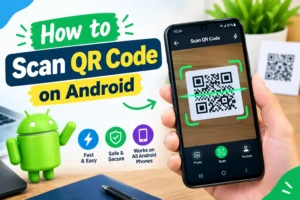
If you are a beginner, learning how to scan qr code on android can help you access information quickly without typing long website addresses. This guide explains the easiest scanning methods, step by step instructions, compatible devices, privacy tips, and solutions to common problems.
Quick Overview
| Feature | Details |
|---|---|
| Main Purpose | Scan QR codes using an Android phone |
| Primary Tool | Built in Camera app |
| Alternative Tool | Google Lens |
| Internet Required | Usually required to open online links |
| Additional App | Often not required |
| Compatible Devices | Most modern Android smartphones |
| Common Uses | Websites, WiFi, payments, menus, and contact details |
| Difficulty Level | Beginner friendly |
| Cost | Usually free |
| Best For | Android users who want to scan QR codes quickly |
Information
QR codes are square shaped patterns that store information in a format that compatible devices can read. When you scan one with your phone, the scanning tool identifies the information and may display a link, text, contact details, or another action.
Android devices offer different scanning options depending on the manufacturer, operating system version, and installed applications. Some phones recognize QR codes directly through the Camera app, while others provide a dedicated QR scanner in Quick Settings or Google Lens.
The easiest approach is to open your Camera app, point it at the QR code, and tap the notification that appears. If your camera does not recognize the code, you can try Google Lens or another trusted scanning tool.
Details
| Detail | Description |
|---|---|
| Developer | Depends on the scanning tool used |
| Platform | Android |
| Version | Depends on your Android version and app updates |
| Price | Free for built in scanning features |
| Category | Utilities and productivity |
| Official Source | Android Help and Google Lens |
Developer
There is no single developer for every QR scanning method on Android. The built in Camera app is generally provided by your phone manufacturer, while Google Lens is developed by Google.
Samsung, Google Pixel, Xiaomi, and other Android phones may use different camera interfaces. The exact buttons and menus can therefore vary between devices.
Platform
QR scanning is available on many Android smartphones and tablets. The feature may be included in the default Camera app, Google Lens, or a dedicated QR scanning option in the device settings.
Version
There is no universal version number for QR scanning on Android. Availability depends on your phone model, Android version, camera software, and Google app updates.
For the best experience, keep your Android operating system and relevant apps updated whenever updates are available for your device.
Price
Built in QR scanning and Google Lens are generally free to use. You normally do not need to pay for a separate application to read ordinary QR codes.
Be careful with scanning apps that request unnecessary subscriptions or permissions. Check the app’s terms and permissions before installing it.
Category
QR scanning belongs to the utilities and productivity categories. It makes everyday tasks easier by allowing users to access digital information without manually entering text or website addresses.
Official source
For reliable instructions and supported Google tools, visit these official resources:
- Android Help: https://support.google.com/android/
- Google Lens: https://lens.google/
Use your phone manufacturer’s official support website if you need model specific instructions.
What Is QR Code Scanning on Android
QR code scanning is the process of using your phone’s camera or a compatible application to read a Quick Response code. A QR code can contain a website address, plain text, contact information, WiFi connection details, or other data.
When you point a compatible scanner at a code, the application analyzes its pattern and displays the information it contains. Depending on the code, you may see a website link, a text message, or an option to connect to a network.
Understanding how to scan qr code on android is useful for shopping, studying, travel, business, and everyday communication. For example, you can scan a restaurant menu, visit a product website, or open a link shared on a printed poster.
Not every QR code is safe. Always check the destination before opening a link, especially if the code comes from an unfamiliar source.
Main Features
Built In Camera Scanning
Many Android phones can recognize QR codes directly through their default Camera app. Open the camera, point it at the code, and wait for a link or notification to appear.
Google Lens Integration
Google Lens can identify QR codes and interpret information captured by your camera. Depending on your device, you can access it through the Google app, Google Photos, or the Camera app.
Quick Settings Scanner
Some Android devices provide a QR scanner shortcut in the Quick Settings panel. Swipe down from the top of your screen and look for a QR code scanning option.
Website Access
Scanning a QR code can open a website without requiring you to type its full address. You should still review the displayed URL before visiting it.
WiFi Connection Support
Some QR codes contain WiFi network information. A compatible phone may allow you to join the network after scanning and confirming the connection.
Image Based Scanning
If a QR code is saved as a screenshot or photograph, Google Lens or another compatible tool may be able to read it from the image without using your camera again.
What’s New
QR scanning is an established feature rather than a single application with one universal release schedule. Available features and interface changes depend on your Android device, camera software, and Google app updates.
Modern Android phones commonly offer easier access to QR scanning through camera integration, Google Lens, and Quick Settings shortcuts. However, not every feature is available on every phone.
To check for improvements, open the Google Play Store and review available updates for Google and other relevant apps. You can also check your phone’s system settings for Android updates.
Avoid assuming that every new scanning feature is available on your device. Check the options supported by your particular phone model.
How We Tested It
This guide is based on the standard QR scanning workflow available through Android camera applications and Google Lens. The steps are designed to help beginners identify the simplest available method.
The process considers the following practical situations:
- Opening a QR code using the default Camera app.
- Looking for QR scanning options in Quick Settings.
- Using Google Lens when the camera does not recognize a code.
- Reading a QR code saved in a photo or screenshot.
- Checking whether the displayed link looks trustworthy before opening it.
Device interfaces differ, so these instructions are general guidance rather than a claim that every phone model has been individually tested. For the most accurate results, follow the instructions that match your Android version and manufacturer.
Performance
QR scanning is usually fast when the code is clear, the camera focuses properly, and the phone has sufficient light. Most ordinary codes can be recognized within a few seconds.
For better results, keep the phone steady and position the entire code inside the camera frame. Avoid glare, heavy shadows, and extreme angles that make the code difficult to read.
If you are learning how to scan qr code on android, remember that a slow response does not always mean your phone is faulty. The code may be damaged, the camera may be out of focus, or the scanning feature may be disabled.
A QR code that opens a website may also require an internet connection. The time needed to load the page depends on your connection and the website itself.
Compatibility
QR scanning is supported on many modern Android phones, but the available method varies by device.
| Device Type | Possible Scanning Method |
|---|---|
| Google Pixel | Camera app or Google Lens |
| Samsung Galaxy | Camera app, Quick Settings, or Bixby Vision where supported |
| Xiaomi and Redmi | Camera app or Google Lens, depending on the model |
| OnePlus | Camera app or Google Lens, depending on the software version |
| Other Android Phones | Built in camera, Google Lens, or a compatible scanner app |
| Older Android Devices | Google Lens or another trusted scanning application may be needed |
The exact menu names and features can differ. If your camera does not recognize QR codes, check the camera settings and look for an option related to QR code scanning.
How to Install
You usually do not need to install anything to scan a QR code because many Android phones already include this feature.
If your device does not offer a built in scanner, follow these steps to access Google Lens or another compatible tool.
- Open the Google Play Store on your Android phone.
- Search for Google Lens or open the official Google app if Lens is available through it.
- Check the app developer and listing details to make sure you have selected the genuine application.
- Tap Install or Update if the relevant option is available.
- Open the app and allow camera access when required.
- Point the camera at a QR code and wait for the result.
On some phones, Google Lens is already integrated into the Camera app or Google Photos. In that case, you may not need to install a separate application.
Only install apps from trusted sources, and avoid scanners that request permissions unrelated to their main function.
How to Use
There are several ways to scan a QR code on Android. Start with the Camera app because it is often the quickest option.
Method One Using the Camera App
- Unlock your Android phone.
- Open the default Camera app.
- Select the normal Photo mode if necessary.
- Point the rear camera at the QR code.
- Keep the code inside the frame and wait for the phone to recognize it.
- Tap the link or notification that appears.
- Review the destination before opening it.
If nothing happens, check the camera settings for a QR scanning option. Some devices may require you to enable it before scanning.
Method Two Using Google Lens
Google Lens is a useful alternative when the standard camera does not recognize a code.
- Open the Google app or Google Lens if it is installed.
- Tap the Lens icon.
- Allow camera access if requested.
- Point your camera at the QR code.
- Wait for Lens to identify the information.
- Tap the displayed result if you trust its destination.
This method can also help with codes that are difficult to recognize through the default camera interface.
Method Three Using Quick Settings
Some Android devices include a QR scanner shortcut in Quick Settings.
- Swipe down from the top of your screen to open the notification panel.
- Swipe down again to display the full Quick Settings panel.
- Look for a QR scanner or Scan QR Code button.
- Tap the shortcut if it is available.
- Point the camera at the code and follow the instructions.
If you cannot find this shortcut, your phone may not support it. You can check whether additional buttons are available by editing the Quick Settings panel.
Method Four Scanning a QR Code From a Picture
You can often scan a code that is already saved on your phone.
- Open Google Photos or another compatible gallery application.
- Find the picture or screenshot containing the QR code.
- Open the image.
- Select Google Lens if the option is available.
- Wait for the code to be recognized.
- Review the information or link before continuing.
This method is helpful when someone sends you a QR code through a messaging app or when you take a screenshot of a webpage.
Method Five Scanning a WiFi QR Code
Some routers and network owners provide QR codes that contain WiFi connection details.
- Open the Camera app or Google Lens.
- Point it at the WiFi QR code.
- Wait for the network information to appear.
- Check that the network name is the one you expect.
- Tap the connection prompt if your phone offers one.
Only connect to networks you trust. A QR code can contain misleading information, so verify the network before joining.
Tips for Better Scanning Results
- Clean your camera lens before scanning.
- Use adequate lighting.
- Keep the phone steady.
- Make sure the entire QR code is visible.
- Move the phone slightly closer or farther away if it cannot focus.
- Avoid scanning codes that are damaged or covered.
- Check the destination URL before opening a link.
Following these steps makes how to scan qr code on android much easier, even if you have never used a QR scanner before.
Pros and Cons
| Pros | Cons |
|---|---|
| Often works without installing another app | Some older phones lack built in scanning |
| Quick access to websites and information | Poor lighting can prevent recognition |
| Google Lens can scan codes in saved images | Features vary between manufacturers |
| Many scanning tools are free | Some codes may lead to unsafe websites |
| Useful for WiFi, menus, and contact information | Internet access may be needed for online content |
| Beginner friendly | Damaged codes can be difficult to read |
Privacy and Security
QR codes are convenient, but scanning one does not guarantee that its contents are safe. A code can direct you to a fraudulent website, a fake login page, or a misleading payment request.
Before opening a scanned link, read the displayed web address carefully. Look for misspellings, unexpected domain names, and suspicious requests for personal information.
Follow these safety practices:
- Scan codes from trusted sources whenever possible.
- Check the URL before opening a website.
- Never enter passwords or banking details on a page you do not trust.
- Avoid downloading unknown files from QR code links.
- Do not approve payments or transfers simply because a QR code requests them.
- Review app permissions before installing a third party scanner.
- Keep your Android system and applications updated.
When learning how to scan qr code on android, remember that the scanner only reads the code. It cannot guarantee that the website, payment request, or other information is legitimate.
For additional protection, use your phone’s built in security features and report suspicious links when appropriate.
Alternatives
If your default Camera app cannot recognize QR codes, you can try these alternatives.
Google Lens
Google Lens is a convenient choice for scanning codes with your camera or identifying codes in compatible saved images. It is particularly useful when your phone’s standard camera lacks QR scanning support.
Google Photos
On supported devices, Google Photos can open an image and let you use Google Lens to identify its contents. This is useful for QR codes received as screenshots or photographs.
Built In QR Scanner
Some phone manufacturers provide a dedicated QR scanner through the Camera app, system tools, or Quick Settings. Check your phone’s official support instructions to find the correct option.
Trusted Third Party Scanner
A reputable QR scanning app may help on older devices. Before installing one, check its developer, reviews, privacy policy, permissions, and update history.
For most users, the built in camera or Google Lens is sufficient. Installing additional software is usually unnecessary unless your device lacks a suitable scanning feature.
Common Problems
The Camera Does Not Recognize the QR Code
Make sure the code is fully visible, the lens is clean, and the lighting is adequate. Try moving your phone slightly closer or farther away.
If the problem continues, check the camera settings for QR scanning support or use Google Lens.
No Link Appears After Scanning
Some camera apps require you to tap a notification or small link icon. Wait a moment and look carefully around the screen.
If no result appears, try another scanning method. The QR code may also be damaged or contain information that your camera app cannot interpret.
Google Lens Does Not Work
Check your internet connection if the app needs online services, and confirm that it has camera permission. Update the Google app or Lens if an update is available.
You can also restart the application and try again.
The QR Code Is Blurry
Hold the phone steady and allow the camera to focus. Increase the distance slightly if the code is too close to the lens.
If the code is on a screen, adjust the brightness and reduce glare. If it is printed, make sure the image is not faded or damaged.
The Phone Cannot Scan a QR Code From a Screenshot
Open the image in Google Photos or another compatible gallery app and look for the Lens option. If that feature is unavailable, use a trusted QR reader that supports image imports.
Avoid uploading private QR codes to unfamiliar websites, particularly if they contain account access or sensitive information.
The Scanned Website Looks Suspicious
Do not open the link if the destination looks unfamiliar or misleading. Close the notification and avoid entering personal details.
If you already opened the website, do not download unknown files or approve unexpected requests.
Frequently Asked Questions
1. How do I scan a QR code on an Android phone?
Open the Camera app, point it at the QR code, and wait for a link or notification to appear. Tap the result after checking that it is safe. If the camera does not recognize the code, try Google Lens.
2. Can I scan a QR code without installing an app?
Yes. Many modern Android phones have QR scanning built into the Camera app. Some devices also provide a scanner shortcut in Quick Settings. If these options are unavailable, Google Lens may be a suitable alternative.
3. Does Android have a built in QR code scanner?
Many Android phones support built in QR scanning, but availability depends on the manufacturer and software version. Check your camera settings or Quick Settings panel to see which features your phone offers.
4. How can I scan a QR code using Google Lens?
Open Google Lens through the Google app or another supported application. Point the camera at the code and wait for the result. Tap the displayed information only after checking that it is trustworthy.
5. Can I scan a QR code from a screenshot on Android?
Yes, on supported devices. Open the screenshot in Google Photos and select Google Lens if available. The tool may recognize the QR code and display its contents without requiring you to point your camera at another screen.
6. Why is my Android phone not scanning QR codes?
Common reasons include poor lighting, a dirty camera lens, incorrect focus, disabled QR scanning, or a damaged code. Improve the lighting, check your camera settings, and try Google Lens if the problem continues.
7. Do I need an internet connection to scan a QR code?
Not always. Your phone can often read the code without internet access. However, opening a website or using an online service may require a working connection.
8. Can I scan a QR code to connect to WiFi?
Yes. If the code contains compatible WiFi details, your phone may display an option to connect to the network. Verify that the network is correct before joining.
9. Is it safe to scan QR codes with an Android phone?
Scanning a code is generally straightforward, but its destination may be unsafe. Check links before opening them, avoid suspicious downloads, and never enter sensitive information on an untrusted website.
10. Which is the best QR scanner for Android?
For most users, the built in Camera app is the easiest choice. Google Lens is a useful alternative, especially for older camera apps and QR codes saved in pictures. The best option depends on your phone and its available features.
Final Verdict
Scanning QR codes on Android is a convenient way to access websites, WiFi networks, menus, and other digital information. Most users can start by opening the default Camera app and pointing it at a code. If that method does not work, Google Lens or a compatible built in scanner may solve the problem.
Learning how to scan qr code on android does not usually require technical knowledge or paid software. Keep your camera lens clean, use good lighting, and check links before opening them. These simple habits can make scanning easier and safer.
For beginners, the best approach is to use the tools already available on your phone before installing another application. With the right method, you can scan QR codes quickly and confidently in everyday situations.