How to Sign a PDF Document on Android for Free
Introduction
Signing PDF documents on an Android phone is a simple way to complete forms, approve agreements, and handle paperwork without printing anything. With free PDF tools, you can add your handwritten signature directly to a document using your finger or a touchscreen stylus.
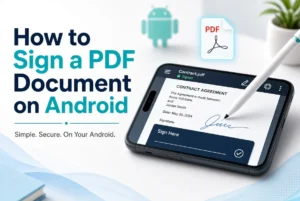
If you want to learn how to sign a pdf document on android, this guide explains the easiest methods, the tools you can use, and the steps to save and share your signed file. You do not need a computer or a paid subscription for basic PDF signing.
Quick Overview
| Feature | Details |
|---|---|
| Main task | Sign PDF documents on Android |
| Best starting method | Adobe Acrobat Reader |
| Alternative method | Google Drive or another compatible PDF app |
| Cost | Free options available |
| Signature methods | Draw, insert, or use a saved signature where supported |
| Internet required | Not always |
| Printing required | No |
| Output format | |
| Best for | Forms, applications, and everyday documents |
Information
This guide covers free methods for signing PDF files on Android smartphones and tablets. The exact options may vary depending on the app, Android version, document permissions, and whether you need a simple signature or a certificate-based digital signature.
For most everyday documents, drawing your signature on the screen is enough. However, some official forms and business agreements may require a particular electronic-signature service or identity verification.
Details
| Property | Details |
|---|---|
| Developer | Depends on the PDF app you choose |
| Platform | Android |
| Version | Latest compatible version of your chosen app |
| Price | Free basic signing options; some apps offer paid features |
| Category | PDF editor and document signing |
| Official source | Adobe Acrobat Reader |
What Is Adobe Acrobat Reader?
Adobe Acrobat Reader is a mobile application for opening, reading, filling out, annotating, and signing PDF documents. Its free signing features make it a useful starting point for people who want to complete paperwork on their phones.
You can draw a signature with your finger, use an image of your handwritten signature, and place it in the appropriate area of a supported PDF. Some advanced editing, conversion, and document-management features require a paid subscription.
Acrobat for Android Help+2
Main Features
The main features that help you sign PDF files on Android include:
-
Handwritten signatures: Draw your signature directly on the touchscreen.
-
Saved signatures: Reuse a signature when the app supports saving it.
-
Signature images: Import an image of your handwritten signature.
-
Signature positioning: Move and resize the signature to fit the document.
-
Form filling: Add information to supported forms before signing.
-
PDF viewing: Read the document and check its contents before signing.
-
File sharing: Send the completed PDF through supported sharing options.
-
Annotation tools: Add notes or markings when needed.
Feature availability can vary by app version and document type.
Acrobat for Android Help+1
What’s New
Adobe regularly updates Acrobat Reader to improve its mobile experience, PDF handling, and document workflows. Its current mobile offering includes tools for viewing, annotating, filling out, and signing PDFs, while additional editing capabilities may be subscription-based.
Google Drive also supports PDF annotation on compatible Android devices, allowing users to draw with a finger or stylus and save an annotated copy. These annotation tools can be useful for a simple handwritten mark, but they are not necessarily equivalent to a dedicated electronic-signature workflow.
Adobe Acrobat+1
For the latest features and changes, check the app’s official listing before installing or updating it.
How We Tested It
This guide is based on the documented workflows and features provided by the app developers. It is intended to help readers choose an appropriate free method; it should not be interpreted as a claim that every device or app version was independently tested.
The recommended process focuses on practical tasks:
-
Opening a PDF from phone storage.
-
Locating the signing or annotation tools.
-
Creating a signature with a finger or stylus.
-
Positioning the signature correctly.
-
Saving a separate signed copy when possible.
-
Reopening the saved file to verify the result.
These checks are useful for confirming that a document is readable, properly signed, and ready to share.
Performance
For ordinary documents, signing a PDF on Android is usually a straightforward process. The speed depends on your phone, the size of the PDF, the number of pages, and whether the file contains complex graphics or scanned images.
A short form should generally be easier to handle than a large document containing hundreds of pages. If the file opens slowly, close unnecessary apps, make sure enough storage is available, and try opening a local copy.
For better results, zoom in before placing your signature. This makes it easier to position your name neatly inside the correct signature field.
Compatibility
PDF signing is available on many Android smartphones and tablets, but exact compatibility depends on the application and operating system.
-
Android phones: Suitable for signing forms, applications, and everyday documents.
-
Android tablets: Larger screens can make handwriting and signature placement easier.
-
Touchscreens: Let you draw a signature with your finger.
-
Stylus devices: Can provide more precise handwriting.
-
Offline use: Some signing tasks can be completed without an internet connection, although downloading apps, syncing files, or sending documents may require connectivity.
Acrobat for Android Help+1
Make sure you use a compatible, updated app and that the PDF is not restricted from editing or signing.
How to Install
Follow these steps to install Adobe Acrobat Reader on your Android phone.
-
Open the Google Play Store.
-
Search for Adobe Acrobat Reader.
-
Check the developer and app listing to ensure you select the official application.
-
Tap Install.
-
Wait for the download and installation to finish.
-
Open the application and follow any setup instructions.
-
Allow access to files only as needed to locate your PDF.
You can find the official listing here: Adobe Acrobat Reader on Google Play.
The app is free to install, although some features require payment.
Apps on Google Play+1
How to Use
There are several ways to sign a PDF on Android. For most people, using a dedicated PDF app is the easiest option.
Method 1: Sign a PDF Using Adobe Acrobat Reader
This method is suitable for applications, permission forms, agreements, and other documents that need a visible electronic signature.
-
Open Adobe Acrobat Reader on your phone.
-
Find and open the PDF document you want to sign.
-
Look for the Fill & Sign or signature tool. The location and label may vary by version.
-
Select the option to add a signature.
-
Choose to draw a signature, import an image, or use another available signature option.
-
If drawing, use your finger or stylus to write your usual signature.
-
Tap Done or the equivalent confirmation option.
-
Tap the correct place in the PDF to insert the signature.
-
Drag the signature into position and resize it if necessary.
-
Review the entire document and save the signed PDF.
The exact interface may vary, but Adobe documents these basic signature-creation and placement steps in its Android help guide.
Acrobat for Android Help+1
Important: Check the document before saving. In some workflows, a saved signature becomes part of the PDF and cannot be removed using the same editing controls afterward.
Method 2: Sign a PDF Using Google Drive
Google Drive provides a convenient alternative for adding a handwritten signature-like mark to a PDF. Its annotation tool supports freehand drawing on compatible Android devices.
Google Drive Help
-
Open the Google Drive app.
-
Find the PDF you want to mark.
-
Tap the file to open its preview.
-
Tap the Annotate button if it is available.
-
Choose the pen tool from the toolbar.
-
Use your finger or stylus to draw your signature in the correct location.
-
Review the result and erase or undo unwanted strokes if necessary.
-
Save the annotated PDF or create a new copy, depending on the available options.
This approach can be useful when you only need to add a handwritten mark. However, Google Drive’s freehand annotation feature is not the same as a certificate-backed digital signature or a dedicated signature-request workflow.
Method 3: Sign a PDF Without Printing
If your goal is to avoid paper, you can sign directly in a PDF app instead of printing, signing by hand, and scanning the document.
-
Download or locate the original PDF on your phone.
-
Open it in a compatible signing application.
-
Create your signature using the available tool.
-
Place it in the correct field.
-
Add any required date or other information.
-
Save the completed document as a PDF.
-
Reopen it to check that the signature appears correctly.
-
Share the saved file with the intended recipient.
This method saves time and avoids the need for a printer or scanner. However, confirm that the recipient accepts electronic signatures before submitting an important document.
Method 4: Sign a PDF With Your Finger
You do not need a stylus to create a handwritten signature. Most touchscreen devices let you draw using your finger in a compatible application.
For a cleaner result:
-
Use a blank signature area.
-
Draw slowly and naturally.
-
Avoid making the signature too large.
-
Zoom in if the signature field is small.
-
Redraw the signature if it is difficult to read.
-
Check the final PDF before sharing it.
If the app lets you save a signature for future use, you may be able to reuse it on other documents. Avoid saving your signature on a shared or untrusted device.
Method 5: Sign a PDF for Free Without Creating a Complicated Workflow
For a one-time signature, start with an existing PDF app or a trusted free signing tool rather than paying for a full PDF editing subscription.
First, check whether the document opens in Adobe Acrobat Reader and whether the free signature tool is available. If you only need to draw on the page, Google Drive’s annotation option may be sufficient. If the PDF is password-protected, shared in view-only mode, or restricted by its owner, you may need permission or an unrestricted copy.
Acrobat for Android Help+1
Avoid uploading sensitive contracts or identity documents to unfamiliar online signing websites simply because they advertise free services.
Pros and Cons
| Pros | Cons |
|---|---|
| Free options are available | Some advanced features require payment |
| No printer is needed | Small screens can make signing difficult |
| Signatures can be drawn with a finger | Some PDFs restrict signing or editing |
| Easy to save and share documents | App interfaces can change after updates |
| Suitable for everyday paperwork | A drawn signature is not always a certified digital signature |
| Works on many Android devices | Some workflows need an internet connection |
Overall, free PDF signing tools are useful for everyday documents, but the best choice depends on the document’s security requirements and the recipient’s rules.
Privacy and Security
When signing a PDF, remember that your signature is personal information. Protect both the signature and the document containing it.
Follow these security practices:
-
Download trusted apps: Use official app stores and verify the developer.
-
Protect sensitive files: Keep confidential documents in a secure location on your device.
-
Review app permissions: Grant only the access necessary for the task.
-
Be careful with cloud storage: Check whether your document or saved signature will be synchronized online.
-
Avoid unknown websites: Do not upload confidential agreements to services you do not trust.
-
Check sharing settings: Make sure the signed document is sent only to the intended recipient.
-
Keep an original copy: Save an unsigned version before making permanent changes.
Also, understand the difference between an electronic signature and a certificate-based digital signature. A handwritten signature image or drawing can indicate agreement, but it does not automatically provide cryptographic verification of the signer’s identity or guarantee that a document has not been altered.
For contracts, financial forms, or legal documents, check the recipient’s signing requirements and applicable local laws before submitting your file.
Alternatives
If Adobe Acrobat Reader does not meet your needs, consider these alternatives.
1. Adobe Acrobat Reader
Best for filling out forms, drawing signatures, and managing PDF documents. Basic signing features are available free of charge.
Official app: Google Play
2. Google Drive
A convenient option for annotating PDFs with your finger or a stylus and saving a marked copy. Its annotation features are not a replacement for every type of electronic-signature service.
Official app: Google Drive
3. DocuSign
Designed for electronic-signature workflows, including signing documents sent by other people. Available features and pricing depend on the service and plan.
Official website: docusign.com
4. Xodo PDF Reader & Editor
An alternative for reading, annotating, and working with PDF files. Check the current Android listing for the specific signing features available in your region.
Official website: xodo.com
For a simple signature, start with Acrobat Reader or Google Drive. If you need to request signatures from several people or manage a formal agreement, consider a dedicated electronic-signature service.
Common Problems
1. The Signature Tool Is Missing
Update your PDF application and look for options such as Fill & Sign, Signature, or Annotate. Some features are available only for particular document types or app versions.
2. The PDF Will Not Open
Check that the file has downloaded completely and has a .pdf extension. Try opening it with another trusted PDF reader. If the file is damaged, request a new copy from the sender.
3. The PDF Is Password-Protected
Some protected PDFs cannot be signed in Acrobat Reader. Ask the document owner for permission or an appropriate version that allows signing. Do not try to bypass document security without authorization.
Acrobat for Android Help
4. The Signature Looks Uneven
Zoom in and draw more slowly. If the app supports undo, erase, or redraw options, use them before saving. A stylus may help if you frequently sign documents on a tablet.
5. The Signature Is in the Wrong Place
Select the signature before finalizing the document, then move or resize it using the available controls. Check that it does not cover text or other form fields.
6. The Signed PDF Will Not Save
Check your phone’s available storage, confirm you have permission to access the destination folder, and try saving a copy with a different filename.
7. The Recipient Cannot See the Signature
Open the saved file again in a PDF reader and verify that the signature appears. If it does not, save the document correctly and resend it. If necessary, sign a fresh copy of the original PDF.
8. The App Requests Payment
Basic signing may be free even when other PDF features are paid. Look for the included signature tool before starting a subscription, and confirm that the required task is covered by the free version.
Frequently Asked Questions
1. How to sign a PDF document on Android for free?
Install Adobe Acrobat Reader from Google Play, open your PDF, locate the signature tool, create your signature, place it in the document, and save the signed file. Basic signing features are available for free.
Apps on Google Play
2. Can I sign a PDF on Android without printing it?
Yes. You can use a compatible PDF application to draw or insert your signature directly into the document. You can then save and share the completed PDF without printing it.
3. Can I sign a PDF using my finger?
Yes. Many PDF signing and annotation tools support finger input. Draw your signature on the touchscreen, position it correctly, and save the document.
4. Which is the best free PDF signing app for Android?
Adobe Acrobat Reader is a good starting point because it offers PDF viewing, form filling, and basic signature features. Google Drive is another option when you only need to add a freehand mark to a PDF.
Apps on Google Play+1
5. Do I need an internet connection to sign a PDF?
Not always. Some PDF applications allow you to sign locally stored documents offline. However, downloading files, installing apps, syncing signatures, and sending documents may require an internet connection.
6. Can I add my signature to a PDF without an app?
You may be able to use a compatible browser-based signing service, depending on your device and the service’s features. However, an installed PDF app is often more convenient. Avoid uploading confidential documents to untrusted websites.
7. Can I save my signature for future use?
Yes, some PDF applications let you save a signature and reuse it on other documents. Check the app’s settings and consider whether the signature will be stored locally or synchronized to an online account.
Acrobat for Android Help
8. Why can’t I sign my PDF on Android?
The file may be password-protected, restricted from signing, shared in view-only mode, or unsupported by your chosen application. Check the document permissions and contact its owner if you need access.
Acrobat for Android Help
9. Is a handwritten signature on a PDF legally valid?
An electronic signature can be legally valid in many situations, but the requirements depend on the document, jurisdiction, and type of transaction. Some documents require additional identity verification, a specific signing service, witnesses, or a certificate-based digital signature.
10. How do I send a signed PDF from my Android phone?
After saving the document, open the PDF or your file manager and select the Share option. Choose your preferred email or messaging application, attach the signed file, and verify the recipient before sending it.
Final Verdict
Learning how to sign a pdf document on android can save time and eliminate the need to print, sign, scan, and upload paperwork. With a free PDF application, you can draw your signature, position it on the page, and save a completed document directly from your phone.
For most beginners, Adobe Acrobat Reader is the best place to start because it provides free basic signing tools alongside PDF viewing and form-filling features. Google Drive is a useful alternative when you simply need to draw on a PDF and save an annotated copy.
Before sharing any signed document, review the entire file, confirm that the signature is visible, and make sure the recipient accepts your signing method. For sensitive agreements, choose a trusted service that meets the document’s security and legal requirements.