How to Use iPhone QR Scanner
QR codes are now everywhere. You can find them on restaurant menus, product packages, event tickets, payment pages, business cards, posters, websites, and even television screens. The good news is that you do not need to install a separate QR code application to read most of them on an iPhone.
The built-in iPhone QR scanner makes it possible to scan a code quickly using the Camera app or the Code Scanner available through Control Center. Once the code is recognized, your iPhone can show the appropriate action, such as opening a website, viewing an app, joining a Wi-Fi network, or accessing other information stored inside the code.
In this guide, you will learn how to scan QR codes on an iPhone, how to use the Code Scanner, what to do when scanning does not work, and how to scan codes more effectively.
What Is a QR Code?
QR stands for Quick Response. A QR code is a two-dimensional barcode that can store different types of information.
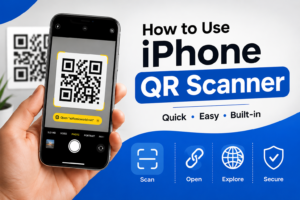
Unlike a traditional barcode, which normally contains information in a single direction, a QR code uses a square pattern to store data. A smartphone camera can recognize this pattern and interpret the information.
Depending on how it was created, a QR code may contain:
- A website address
- Contact information
- A Wi-Fi network
- An email address
- A phone number
- An event ticket
- A product page
- A payment-related link
- Text or other digital information
Modern iPhones can recognize QR codes directly through their built-in camera features. Apple also provides a dedicated Code Scanner that can be accessed from Control Center.
How to Use the iPhone QR Scanner With the Camera
The easiest way to scan a QR code is with the Camera app. You do not normally need to download anything from the App Store.
Follow these steps.
Step 1: Open the Camera App
Open the Camera app on your iPhone.
You can launch it from the Home Screen, Control Center, or Lock Screen.
Step 2: Select the Rear Camera
Use the rear-facing camera and point your iPhone toward the QR code.
Make sure the entire code is visible within the camera frame.
Step 3: Keep the QR Code Steady
Hold your iPhone still for a moment.
You do not need to take a picture. The camera can recognize the QR code while you are viewing it.
Step 4: Wait for the QR Code Notification
When your iPhone recognizes the code, a notification or link appears on the screen.
The action depends on the information contained in the QR code.
Step 5: Tap the Notification
Tap the notification to continue.
For example, if the QR code contains a website address, your iPhone can open the associated website.
Apple’s current guidance confirms that the Camera app can detect QR codes and present an action for the information they contain.
How to Scan a QR Code Using Control Center
Your iPhone also includes a dedicated Code Scanner. This can be useful when you want quick access to QR scanning without relying on the regular Camera interface.
Add Code Scanner to Control Center
If you cannot find Code Scanner in Control Center, you may need to add it.
Depending on your iOS version, the exact Control Center customization interface can look different.
On supported versions, open Control Center and use the controls customization option to add the Scan Code control. Apple documents Code Scanner as a built-in way to scan QR codes.
Scan the Code
After adding the scanner:
- Open Control Center.
- Tap the Code Scanner or Scan Code control.
- Point your iPhone at the QR code.
- Keep the code inside the scanning area.
- Wait for it to recognize the code.
- Follow the action shown on the screen.
The dedicated scanner can be particularly convenient when you frequently scan QR codes.
How to Scan QR Codes in Low Light
Lighting can make a significant difference when scanning a QR code.
If the environment is dark, the camera may have difficulty seeing the code clearly. The dedicated Code Scanner provides a flashlight option that can help illuminate the QR code.
Try these tips:
- Turn on the flashlight when necessary.
- Avoid strong reflections on glossy QR codes.
- Keep the phone steady.
- Make sure the QR code is not partially covered.
- Move slightly closer or farther away if the code is not being recognized.
Good lighting and a clean camera lens can often solve scanning problems.
How to Scan a QR Code From Another Screen
You may encounter a QR code on a computer monitor, television, tablet, or another phone.
In that situation, simply point your iPhone camera toward the other screen.
For the best result:
- Increase the brightness of the screen displaying the QR code.
- Make sure the entire code is visible.
- Hold your iPhone at a comfortable distance.
- Avoid reflections.
- Wait for the code to be detected.
If the QR code is very small, adjust the distance until the camera can clearly see its pattern.
Can You Scan a QR Code From a Photo?
Sometimes you may already have a QR code saved as an image rather than displayed in front of you.
If your iPhone or iOS version supports recognizing QR information from an image, you may be able to use built-in image recognition features to interact with the code. Availability and behavior can vary by iOS version and the type of content in the image.
Another simple option is to display the QR code on another screen and scan it with the Camera app.
This is useful when someone sends you a QR code through a messaging app or email and you need to open the information it contains.
How to Scan a QR Code From Safari
QR codes can also appear on webpages.
If you are browsing on your iPhone and encounter a QR code, scanning it with the same device can be less convenient because the code is already on your screen.
In this situation, you can:
- Open the webpage containing the QR code on another device.
- Display the QR code on a computer.
- Take an appropriate screenshot or save the image when supported.
- Use image recognition features available on your iPhone when applicable.
The easiest solution is often to display the QR code on another screen and use the Camera app.
What Can an iPhone QR Scanner Do?
QR codes can contain different types of information, so the action you see after scanning depends on the code.
For example, scanning a QR code might allow you to:
Open a Website
A QR code can contain a web address. Tapping the notification can open the corresponding website.
Access an App
Some QR codes direct users toward an application or an app-related webpage.
View a Menu
Restaurants and cafés may use QR codes to provide digital menus.
Access Tickets
Events and transportation services can use QR codes to provide digital tickets or entry information.
Join a Wi-Fi Network
A properly configured QR code can contain Wi-Fi information, making it easier for compatible devices to connect.
Open Contact Information
QR codes can also be used to share contact details.
Is a Third Party QR Scanner App Necessary?
For ordinary QR-code scanning, a separate app is generally not necessary because iPhone has built-in QR scanning functionality.
The Camera app can recognize QR codes, while Code Scanner provides another built-in method.
Third-party applications may offer additional features, but you should consider whether those features are actually needed before installing another app.
Using Apple’s built-in tools can be simpler because there is no additional application to download or maintain.
Why Is My iPhone Not Scanning QR Codes?
Sometimes a QR code may not scan immediately.
Several factors can cause the problem.
1. The QR Code Is Too Small
If the code occupies only a tiny portion of the camera view, move closer while keeping the entire code visible.
2. The Camera Lens Is Dirty
Dust, fingerprints, or smudges can reduce image clarity.
Clean the camera lens gently with an appropriate soft cloth and try again.
3. There Is Not Enough Light
Move to a brighter area or use the flashlight option available with Code Scanner.
4. The QR Code Is Damaged
A heavily damaged or poorly printed QR code may not contain enough readable information for your iPhone to recognize it.
5. The Code Is Obscured
Make sure nothing is covering part of the QR pattern.
6. You Are Holding the Phone at an Awkward Angle
Try positioning the phone more directly toward the code.
7. The QR Code Is Not Actually Valid
Not every square-looking graphic is a functioning QR code. Some designs may resemble QR codes without containing usable information.
Tips for Faster QR Code Scanning
You can improve your scanning experience by following a few simple practices.
Keep the Code Completely Visible
Do not cut off any of the corners of the QR code.
Avoid Excessive Zoom
Digital zoom can sometimes make a small code easier to see, but it can also reduce clarity. Try changing the physical distance first.
Use Good Lighting
Clear lighting helps the camera distinguish the QR pattern from its background.
Hold Your Phone Steady
Movement can make it harder for the camera to recognize a small or detailed code.
Clean Your Camera Lens
A fingerprint across the lens can cause blur and reduce scanning reliability.
Check the Destination Before Opening It
QR codes can direct you to websites, apps, or other online destinations. If the destination looks suspicious or unexpected, do not continue.
Is It Safe to Scan QR Codes?
Scanning a QR code is not automatically dangerous, but the information behind a QR code can lead to an untrusted website or other content.
Treat QR codes like links.
Before continuing, check where the code wants to take you. Be especially cautious if the QR code asks for sensitive information, payment details, passwords, or unexpected downloads.
A QR code displayed in a trusted location can still be replaced or altered, so it is worth checking the destination before interacting with it.
Avoid entering sensitive information on websites that you do not recognize.
iPhone QR Scanner vs Third Party Apps
For basic QR scanning, Apple’s built-in tools are usually the simplest option.
| Feature | Built-in iPhone Tools | Third Party App |
|---|---|---|
| QR scanning | Yes | Usually |
| Extra installation | No | Yes |
| Camera scanning | Yes | Usually |
| Control Center access | Yes | Depends on app |
| Extra features | Limited | Depends on app |
| Suitable for basic scanning | Yes | Yes |
If your goal is simply to scan websites, menus, tickets, or other ordinary QR codes, the built-in scanner is a convenient choice.
Frequently Asked Questions
Can I scan a QR code without downloading an app?
Yes. iPhone has built-in QR scanning through the Camera app and Code Scanner, so a separate application is normally unnecessary for basic scanning.
Where is the QR scanner on an iPhone?
You can scan QR codes directly with the Camera app. You can also use Code Scanner through Control Center if it has been added to your controls.
Why is my iPhone camera not scanning a QR code?
Check the lighting, clean the camera lens, make sure the complete QR code is visible, and try changing the distance between the phone and the code.
Do I need to take a picture of a QR code?
No. The Camera app can recognize a QR code while it is in the camera view. You normally just point the camera at the code and wait for the notification.
Can an iPhone scan QR codes from a computer screen?
Yes. Point the rear camera toward the QR code displayed on the computer screen and wait for the iPhone to recognize it.
Can I scan QR codes in dark places?
Yes, but poor lighting can make recognition more difficult. The Code Scanner includes a flashlight option that can provide additional light.
Do all QR codes open websites?
No. A QR code can contain different kinds of information. It may provide a website, contact information, Wi-Fi details, an app-related action, a ticket, or other data.
Is the iPhone QR scanner free?
Yes. The built-in Camera and Code Scanner features are included with the iPhone and do not require purchasing a separate QR scanning application.
Is it safe to scan every QR code?
You should be cautious. A QR code can direct you to an unfamiliar or malicious website. Always check the destination before entering sensitive information or downloading anything.
Can I use the iPhone QR scanner without the Camera app?
Yes. You can use the dedicated Code Scanner from Control Center when it is available and configured on your iPhone.
Conclusion
Learning how to use the iPhone QR scanner is simple because Apple provides QR recognition directly through the iPhone’s built-in tools. For most situations, you can open the Camera app, point it at the code, and tap the notification that appears.
If you scan QR codes frequently, adding Code Scanner to Control Center can provide another convenient way to access the feature. In low-light situations, the scanner’s flashlight option can also help.
Most importantly, remember that QR codes work much like links. Before opening a destination, make sure it looks trustworthy, especially when a code asks for personal information, payment details, or an unexpected download.
With these simple techniques, you can scan QR codes quickly without relying on an additional scanner app.