Windows 7 Ultimate Everything You Need to Know
Introduction
Windows 7 Ultimate remains one of the most recognized operating systems ever released by Microsoft. Even years after its official support ended, many users continue to appreciate its simple interface, reliable performance, and broad compatibility with older software and hardware. Businesses, students, and technology enthusiasts often remember it as one of the most balanced versions of Windows because it combined powerful features with an easy-to-use design.
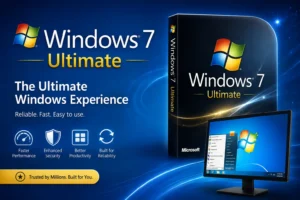
Whether you are learning about Windows 7 Ultimate for historical interest, maintaining a legacy computer, or exploring its features before upgrading to a newer operating system, understanding its capabilities can help you make informed decisions. This guide explains everything from features and editions to system requirements, installation, and best practices for safe use.
Although Windows 7 is no longer supported with security updates from Microsoft, it still plays an important role in environments where legacy applications are required. If you continue using it, ensure that you install it from legitimate licensed media and activate it with a valid product key.
What Is Windows 7 Ultimate
Windows 7 Ultimate is the most feature-rich consumer edition of Windows 7. It combines the functionality of the Professional and Home Premium editions while adding advanced security, networking, and multilingual capabilities.
Designed for both home users and professionals, this edition provides tools that support productivity, entertainment, and system management. Many users preferred it because it offered every major feature available in Windows 7 without requiring a separate enterprise license.
Key Characteristics
- Elegant and responsive user interface
- Fast startup and shutdown
- Improved taskbar navigation
- Enhanced security features
- Better hardware compatibility
- Support for multiple languages
- Advanced networking capabilities
- Remote Desktop Host support
- BitLocker drive encryption
- Backup and Restore utilities
These features made Windows 7 one of the most successful operating systems ever released.
Why Windows 7 Became So Popular
Windows 7 earned an excellent reputation because it addressed many of the usability concerns users experienced with earlier Windows versions. The operating system was stable, efficient, and intuitive.
Better Performance
Compared with many earlier releases, Windows 7 booted faster and consumed fewer system resources. Even computers with modest hardware specifications could run it smoothly.
User Friendly Interface
The redesigned taskbar allowed users to pin frequently used applications, preview open windows, and switch between programs effortlessly.
Strong Software Compatibility
Thousands of applications were designed specifically for Windows 7, making it suitable for office work, multimedia editing, education, and gaming.
Reliable Stability
One of the biggest reasons people appreciated Windows 7 was its consistent performance. System crashes became much less common than in previous generations.
Main Features of Windows 7 Ultimate
Improved Desktop Experience
Windows 7 introduced several visual enhancements that improved productivity.
Aero Desktop
The Aero interface added transparent window borders, smooth animations, and attractive desktop effects while maintaining good performance.
Aero Peek
This feature lets users quickly preview the desktop without minimizing every open window.
Aero Snap
Dragging a window to the side of the screen automatically resized it, making multitasking much easier.
Aero Shake
Shaking one window minimized all other open windows instantly, helping users focus on a single task.
Enhanced Taskbar
The redesigned taskbar was one of the most praised improvements.
Benefits include:
- Pin favorite applications
- Jump Lists for recent files
- Live thumbnail previews
- Easy application switching
- Faster workflow
Libraries
Libraries helped users organize documents, music, pictures, and videos from multiple folders into one convenient location.
Common libraries include:
- Documents
- Pictures
- Music
- Videos
This organization system reduced the time needed to locate files.
HomeGroup
HomeGroup simplified file and printer sharing between computers connected to the same home network.
Users could easily:
- Share folders
- Share printers
- Stream media
- Manage permissions
BitLocker Drive Encryption
One of the premium capabilities included with Ultimate is BitLocker.
Advantages include:
- Encrypts entire drives
- Protects confidential information
- Prevents unauthorized access
- Improves data security for laptops
For users storing sensitive information, BitLocker added an extra layer of protection.
Remote Desktop Host
Remote Desktop allows users to connect to their computer from another supported Windows device.
Common uses include:
- Working remotely
- Accessing files
- Technical support
- Managing office computers
Windows Backup and Restore
Windows 7 includes built-in backup tools that allow users to create system images and restore important files when needed.
Backup options include:
- System image creation
- Scheduled backups
- Restore previous versions
- File recovery
Windows 7 Editions Comparison
Windows 7 was available in several editions designed for different users.
Windows 7 Starter
Ideal for entry-level computers with basic computing needs.
Features include:
- Basic desktop
- Internet browsing
- Office applications
Windows 7 Home Basic
Created mainly for emerging markets and included more multimedia features than Starter.
Windows 7 Home Premium
Suitable for home users.
Features include:
- Windows Media Center
- Better graphics
- Home networking
- Entertainment tools
Windows 7 Professional
Designed for business users.
Additional features:
- Domain Join
- Remote Desktop
- Windows XP Mode
- Backup for business environments
Windows 7 Ultimate
This edition combines all major features found in the other consumer editions.
Advantages include:
- BitLocker encryption
- Remote Desktop Host
- Multiple language support
- Domain Join
- Backup tools
- Enterprise-level security
- Advanced networking
For users who needed every available feature, Windows 7 Ultimate offered the most complete experience.
System Requirements
Before installing Windows 7, verify that your computer meets the minimum hardware requirements.
Minimum Requirements
Processor
1 GHz or faster 32-bit or 64-bit processor
Memory
- 1 GB RAM for 32-bit
- 2 GB RAM for 64-bit
Storage
- 16 GB available disk space for 32-bit
- 20 GB available disk space for 64-bit
Graphics
DirectX 9 compatible graphics device with WDDM driver.
Display
Minimum screen resolution of 800 × 600.
Recommended Hardware
For smoother performance, consider:
- Dual-core processor
- 4 GB or more RAM
- SSD storage
- Dedicated graphics card for multimedia work
- Stable internet connection for downloading updates and drivers
Using recommended hardware results in a faster, more responsive computing experience.
Who Should Consider Windows 7 Today
Although Windows 7 has reached the end of official support, there are still situations where it may be appropriate to use it.
Legacy Software
Some specialized business and industrial applications were designed specifically for Windows 7 and may not function correctly on newer operating systems.
Older Hardware
Older desktop and laptop computers often perform better with Windows 7 than with more recent Windows versions due to lower hardware requirements.
Offline Environments
Systems that are isolated from the internet for testing, education, or operating legacy equipment may continue to run Windows 7 effectively when properly maintained.
This concludes Part 1 of the guide. In the next part, we will cover legitimate installation methods, activation with a valid license, performance optimization, security recommendations, driver management, troubleshooting common issues, and maintenance tips.
How to Install Windows 7 Ultimate
Installing Windows 7 Ultimate is straightforward when you use legitimate installation media and a valid license. Before beginning, back up important files because the installation process may erase existing data depending on the installation option you choose.
Step 1 Prepare Your Computer
Before installation, make sure your computer is ready.
Checklist
- Back up important documents, photos, and videos.
- Verify that your PC meets the recommended system requirements.
- Ensure you have enough free disk space.
- Keep your device connected to a reliable power source.
- Download drivers from your computer manufacturer’s official website if needed.
Step 2 Create Installation Media
You can install Windows from a DVD or a bootable USB drive created from legitimate installation media.
A bootable USB drive is usually the faster option because installation takes less time than using a DVD.
Step 3 Configure Boot Order
Restart your computer and enter the BIOS or UEFI settings.
Change the boot priority so the USB drive or DVD appears before the internal hard drive.
Save the settings and restart the computer.
Step 4 Begin Installation
Once the setup starts, choose:
- Language
- Time and currency format
- Keyboard layout
Click Install Now to continue.
Step 5 Accept the License Agreement
Read the Microsoft Software License Terms carefully.
Accept the agreement and proceed to the next screen.
Step 6 Choose Installation Type
You generally have two options.
Upgrade
Keeps compatible files and settings from an earlier supported Windows version.
Custom Installation
Performs a clean installation, which is recommended for the best performance on a newly prepared drive.
Step 7 Select the Installation Drive
Choose the partition where Windows will be installed.
If necessary, create, delete, or format partitions before continuing.
Always double-check the selected drive to avoid deleting important data.
Step 8 Complete Setup
The installer will copy files, install features, restart the computer several times, and guide you through the final setup.
After installation, configure:
- User account
- Computer name
- Time zone
- Network settings
- Windows Update preferences
Activating Windows
After installation, activate Windows using a valid product key associated with your licensed copy. Activation confirms that the software is genuine and helps unlock the full functionality of the operating system.
Essential Drivers After Installation
Installing the correct drivers ensures your hardware performs properly.
Graphics Driver
Provides better display quality and improved gaming performance.
Audio Driver
Enables speakers, microphones, and sound enhancements.
Network Driver
Allows internet and local network connectivity.
Chipset Driver
Improves communication between the processor, memory, and motherboard components.
Printer Driver
Required if you connect a printer or multifunction device.
Keeping drivers up to date improves stability and compatibility.
Best Features for Productivity
Windows Search
The built-in search tool quickly finds files, folders, applications, and settings.
Sticky Notes
Create reminders directly on your desktop for important tasks.
Calculator
Includes standard, scientific, programmer, and statistical modes.
Snipping Tool
Capture screenshots without installing third-party software.
Device Manager
Manage installed hardware and troubleshoot driver issues from one location.
Performance Optimization Tips
Proper maintenance helps Windows remain responsive.
Remove Unnecessary Startup Programs
Many applications automatically start when Windows boots.
Disabling unnecessary startup items reduces boot time.
Keep Enough Free Storage
Maintaining free disk space improves overall system responsiveness.
Delete:
- Temporary files
- Duplicate files
- Old downloads
- Unused applications
Defragment Traditional Hard Drives
If your computer uses a mechanical hard drive, periodic defragmentation improves file access speeds.
Solid-state drives should not be defragmented.
Adjust Visual Effects
Disabling unnecessary animations can improve performance on older hardware.
Examples include:
- Window animations
- Shadows
- Transparency effects
Install Adequate RAM
Upgrading memory is one of the most effective ways to improve multitasking.
For everyday use, 4 GB or more provides a smoother experience.
Scan for Malware
Malicious software slows down computers and may compromise personal information.
Regular security scans help maintain system performance.
Security Best Practices
Because Windows 7 no longer receives regular security updates, following safe computing habits is especially important.
Use Strong Passwords
Create unique passwords using a combination of:
- Uppercase letters
- Lowercase letters
- Numbers
- Symbols
Enable Firewall Protection
Windows Firewall helps block unauthorized network connections.
Install Reliable Security Software
A reputable antivirus solution adds another layer of protection against malware and other threats.
Avoid Unknown Downloads
Download software only from trusted developers and official sources to reduce the risk of malicious programs.
Back Up Important Files
Maintain regular backups on an external drive or another trusted storage location so important data can be recovered if needed.
Common Problems and Solutions
Slow Startup
Possible Causes
- Too many startup applications
- Low available storage
- Background processes
Solutions
- Disable unnecessary startup programs.
- Remove unused software.
- Free up disk space.
- Restart the computer periodically.
No Internet Connection
Possible Causes
- Missing network driver
- Faulty network settings
- Router issues
Solutions
- Restart the router.
- Check network cables or Wi-Fi.
- Install the correct network driver.
- Run Windows Network Diagnostics.
No Sound
Causes
- Missing audio driver
- Muted speakers
- Incorrect playback device
Solutions
- Verify speaker connections.
- Update or reinstall the audio driver.
- Select the correct playback device in Sound settings.
Blue Screen Errors
Blue screen errors can result from:
- Faulty hardware
- Driver conflicts
- Memory issues
- Disk errors
Troubleshooting steps include:
- Updating drivers
- Running memory diagnostics
- Checking the hard drive for errors
- Removing recently installed incompatible software
Printer Not Working
Possible fixes include:
- Restart the printer.
- Reinstall the printer driver.
- Check USB or network connections.
- Set the correct printer as the default device.
Maintenance Tips
Regular maintenance helps extend the life of your computer.
Clean Temporary Files
Removing temporary files frees storage and can improve responsiveness.
Uninstall Unused Programs
Applications you no longer use consume storage and may affect performance.
Review installed software periodically and remove programs that are no longer needed.
Organize Files
Store documents, photos, and videos in clearly labeled folders to make them easier to find and back up.
Restart Occasionally
If your computer remains powered on for long periods, an occasional restart helps apply updates and clear temporary system resources.
Advantages of Windows 7 Ultimate
Many users continue to appreciate Windows 7 for several reasons.
Advantages
- Simple and intuitive interface
- Fast performance on older computers
- Excellent compatibility with legacy software
- Stable operating environment
- Built-in backup tools
- Remote Desktop support
- BitLocker drive encryption
- Broad hardware compatibility
- Easy navigation
- Efficient multitasking
Limitations to Consider
While Windows 7 remains familiar to many users, it also has important limitations.
Disadvantages
- Official Microsoft support has ended.
- No regular security updates.
- Reduced compatibility with some modern hardware.
- Some new applications no longer support Windows 7.
- Modern security technologies are more limited than in current Windows versions.
Understanding these limitations can help users decide whether maintaining a legacy system or moving to a newer Windows version is the better choice.
1. What is Windows 7 Ultimate?
Windows 7 Ultimate is the most feature-rich edition of Windows 7. It includes all the capabilities found in the Home Premium and Professional editions, along with advanced features such as BitLocker Drive Encryption, Remote Desktop Host, and multilingual language support.
2. Is Windows 7 Ultimate still supported by Microsoft?
No. Microsoft officially ended support for Windows 7 on January 14, 2020. This means the operating system no longer receives regular security updates or technical support. Users who continue using it should take extra precautions to protect their systems.
3. What are the minimum system requirements for Windows 7 Ultimate?
The minimum requirements are:
- 1 GHz or faster processor
- 1 GB RAM for 32-bit or 2 GB RAM for 64-bit
- 16 GB free storage for 32-bit or 20 GB for 64-bit
- DirectX 9 compatible graphics device
- Display resolution of at least 800 × 600
Meeting the recommended requirements provides a smoother experience.
4. Can I install Windows 7 Ultimate on a modern computer?
It depends on the hardware. Some newer computers may not have drivers that support Windows 7, especially for the latest processors and chipsets. Always check your device manufacturer’s compatibility information before installation.
5. What makes Windows 7 Ultimate different from Windows 7 Professional?
Windows 7 Ultimate includes everything available in Windows 7 Professional and adds premium features such as BitLocker Drive Encryption and multilingual language packs. It is the most complete consumer edition of Windows 7.
6. Is Windows 7 Ultimate good for gaming?
Many classic PC games run well on Windows 7 Ultimate because of its excellent compatibility with older hardware and software. However, some modern games require newer versions of Windows and updated graphics technologies.
7. Can I upgrade from Windows 7 Ultimate to Windows 10 or Windows 11?
Yes. Many users choose to upgrade to a newer version of Windows to benefit from improved security, performance, and compatibility. Before upgrading, back up important files and verify that your computer meets the system requirements for the newer operating system.
8. How can I improve the performance of Windows 7 Ultimate?
You can improve performance by:
- Removing unnecessary startup programs
- Keeping sufficient free disk space
- Installing additional RAM if supported
- Updating hardware drivers
- Running regular malware scans
- Cleaning temporary files
- Uninstalling unused applications
These practices help maintain a faster and more responsive system.
9. Is Windows 7 Ultimate suitable for everyday use today?
Windows 7 Ultimate can still be useful for offline tasks, legacy software, or older hardware. However, because it no longer receives security updates, it is generally safer to use a newer supported version of Windows for internet-connected everyday computing.
10. Where can I obtain Windows 7 Ultimate legally?
The safest approach is to use genuine installation media and a valid license obtained through legitimate sources. Using properly licensed software helps ensure authenticity, reliability, and compliance with Microsoft’s licensing terms.
Conclusion
Windows 7 Ultimate remains one of Microsoft’s most memorable operating systems thanks to its balance of performance, stability, and advanced features. Its intuitive interface, broad software compatibility, and productivity tools made it a preferred choice for millions of users around the world.
Although official support has ended, Windows 7 Ultimate can still serve specific purposes such as running legacy applications or supporting older hardware when used responsibly. For systems connected to the internet, upgrading to a supported version of Windows is generally recommended to benefit from current security protections and ongoing updates.
Whether you are exploring its features, maintaining an older computer, or learning about its history, understanding Windows 7 Ultimate provides valuable insight into one of the most successful operating systems Microsoft has ever released.