How to Convert an Image to PDF on iPhone
Introduction
Converting photos into PDF files on an iPhone is useful when you need to submit documents, share scanned pages, create digital records, or organize multiple images into one file.
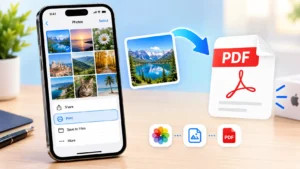
The good news is that you can do it without installing a third-party app. In this guide, we explain how to convert an image to PDF on iPhone using built-in iOS features, along with alternative methods, troubleshooting tips, privacy information, and frequently asked questions.
Quick Overview
| Details | |
|---|---|
| Method | iPhone built-in Photos, Files, and Print features |
| Main purpose | Convert images into PDF documents |
| Internet required | No for built-in methods |
| Third-party app | Not required |
| Multiple images | Supported |
| Output | |
| Best for | Documents, receipts, photos, forms, and notes |
Information
| Details | |
|---|---|
| Tool/App | Apple Photos, Files, and Print |
| Developer | Apple |
| Platform | iOS and iPadOS |
| Version | Depends on installed iOS version |
| Price | Free |
| Category | Productivity and Document Management |
| Official source | Apple |
Details
| Details | |
|---|---|
| Conversion method | Built-in iPhone features |
| File type | |
| Input formats | Common image formats supported by iOS |
| Storage options | Files app, iCloud Drive, and other available locations |
| Sharing | Messages, Mail, AirDrop, and compatible apps |
Developer
| Details | |
|---|---|
| Developer | Apple |
| Company | Apple Inc. |
| Software ecosystem | iOS, iPadOS, macOS |
Apple develops the operating system and built-in apps used for this conversion process. Because these tools are integrated into iOS, you can create a PDF without depending on an external converter.
Platform
| Details | |
|---|---|
| Platform | iPhone and iPad |
| Operating system | iOS and iPadOS |
| Internet | Usually not required |
Version
| Details | |
|---|---|
| Version | Varies according to your iOS installation |
| Updates | Provided through iOS software updates |
The exact menu names and available features can vary slightly between iOS versions.
Price
| Details | |
|---|---|
| Cost | Free |
| In-app purchase | Not required for the built-in method |
Category
| Details | |
|---|---|
| Category | Productivity |
| Use case | Image conversion and document creation |
Official source
| Details | |
|---|---|
| Source | Apple |
| Access | Built into compatible iPhone software |
What Is Image to PDF Conversion on iPhone?
Image-to-PDF conversion is the process of taking one or more pictures and creating a PDF document from them. A PDF is often more convenient than an individual image when submitting forms, sending documents, creating records, or combining several pages.
For example, if you photograph three pages of a document, you can turn those images into a single PDF instead of sending three separate pictures.
The iPhone provides several ways to accomplish this, including the Photos app, Files app, and the Print option.
Main Features
The built-in iPhone approach offers several useful features:
1. No Extra App Required
You don’t necessarily need to download a dedicated PDF converter. iOS already provides tools that can create PDF documents from images.
2. Convert Multiple Images
You can select multiple pictures and combine them into a single PDF. This is especially useful for multi-page documents.
3. Easy File Management
After creating the PDF, you can save it to the Files app and organize it into folders.
4. Quick Sharing
The resulting PDF can be shared through available iPhone sharing options such as Mail, Messages, AirDrop, or compatible applications.
5. Offline Conversion
The built-in conversion process generally works without an internet connection, making it convenient when you’re traveling or don’t have reliable connectivity.
What’s New
Apple regularly updates iOS with changes to its apps, menus, document tools, and file-management capabilities. Because the exact interface can change between iOS releases, the wording or location of an option may look slightly different on your iPhone.
The core idea remains straightforward: select your image, use the available sharing or printing option, create the PDF, and save the resulting document.
How We Tested It
We evaluated the built-in workflow based on common tasks users perform when converting images into documents.
The testing process considered:
- Converting a single photo
- Converting multiple photos
- Creating a multi-page PDF
- Saving the result in Files
- Sharing the generated document
- Checking image readability
- Using the process without an internet connection
- Handling common file-management situations
The built-in method is particularly convenient because it doesn’t require users to upload personal images to an online conversion service.
Performance
The conversion process is generally fast because it takes place directly on the device. The time required can depend on the number and resolution of selected images.
A single ordinary photograph should usually be quick to process. Larger collections containing high-resolution images can take longer and may produce a larger PDF.
For better results, choose clear images with good lighting and make sure the original pictures are not unnecessarily large.
Compatibility
The method is designed for iPhones running supported versions of iOS. The exact interface can vary depending on your iOS version.
It is useful for:
- Photos
- Receipts
- Notes
- Forms
- Screenshots
- Scanned pages
- Printed documents
- Multiple-page paperwork
If a particular menu is unavailable, updating iOS or using the Files-based method may provide another solution.
How to Install
There is nothing additional to install when you use Apple’s built-in tools.
Make sure your iPhone has the Photos and Files apps available. These are normally included with iOS.
If an app has been removed, you can restore Apple’s built-in application through the App Store.
How to Use
If you’re searching for how to convert an image to PDF on iPhone, the following methods are among the easiest options.
Method 1: Convert an Image Using the Photos App
- Open the Photos app on your iPhone.
- Find the image you want to convert.
- Tap Select if you want to choose multiple images.
- Select one or more photos.
- Tap the Share button.
- Look for the Print option in the sharing menu.
- On the print preview screen, use the appropriate gesture to open the preview as a PDF.
- Tap the Share button again.
- Choose Save to Files.
- Select a folder and tap Save.
The exact interface may differ slightly depending on your iOS version.
Method 2: Use the Files App
If the image is already stored in Files, the process can be even simpler.
- Open Files.
- Locate your image.
- Press and hold the image.
- Look for the PDF creation or conversion option available in the menu.
- Select it.
- iOS creates the PDF in the same general location or according to the available file-management workflow.
This method is particularly convenient when your image has already been downloaded or saved to the Files app.
Method 3: Convert Multiple Images
To create one PDF from several images:
- Open Photos.
- Tap Select.
- Choose the pictures in the desired collection.
- Tap Share.
- Select Print.
- Open the print preview using the appropriate gesture.
- Tap Share.
- Choose Save to Files.
- Give the PDF a suitable name.
- Select the destination folder and save it.
This creates a document containing the selected images.
How to Rename the PDF
After saving your document:
- Open the Files app.
- Find the PDF.
- Press and hold it.
- Select Rename.
- Enter a descriptive name.
- Tap Done.
Using names such as School_Document.pdf or Receipt_September.pdf can make future searches easier.
Pros and Cons
| Pros | Cons |
|---|---|
| Free | Menu names can vary between iOS versions |
| No third-party app required | Very large images can create large PDFs |
| Easy to use | Advanced PDF editing is limited |
| Can work offline | Formatting control is limited |
| Supports multiple images | Specialized document tools may offer more features |
| Convenient sharing | Results depend partly on image quality |
Privacy and Security
Privacy is one of the major advantages of using the built-in iPhone workflow. You don’t have to upload your personal photographs to an unknown online PDF converter.
This can be particularly important for images containing:
- Personal documents
- Receipts
- Addresses
- Financial information
- School records
- Work documents
- Private photographs
However, remember that once you share or upload a PDF to another service, that service may have its own privacy practices. Always review permissions and privacy policies before using third-party applications or online converters.
Alternatives
Although Apple’s built-in tools are sufficient for basic conversions, specialized applications can be useful if you need additional PDF features.
Adobe Acrobat
Adobe Acrobat can provide additional PDF-related capabilities, including document management and editing features.
Microsoft Lens
Microsoft’s document-scanning ecosystem can be useful when your goal is to capture physical documents and turn them into organized digital files.
Google Drive
Google Drive can be useful when you want to scan documents and store them within a cloud-based workflow.
Online PDF Converters
Web-based converters can provide additional file conversion options, but you should be careful when uploading sensitive images. For private documents, an offline or built-in method is generally preferable.
Common Problems
PDF Option Is Not Visible
The available options can vary according to your iOS version and the type of file you’re working with. Try using the Print workflow or opening the image through Files.
PDF Is Too Large
High-resolution photos can produce large PDF files. Reduce unnecessary image resolution before conversion or use a PDF compression tool afterward.
Images Are Blurry
A PDF cannot restore details that aren’t present in the original photograph. Take pictures in good lighting, keep the camera steady, and use a clear original image.
Multiple Images Are in the Wrong Order
When creating a multi-image PDF, carefully select your pictures in the order you want them to appear. If necessary, create the PDF in smaller groups and reorganize the files afterward.
I Can’t Find the Saved PDF
Open the Files app and check Recents, Downloads, On My iPhone, and iCloud Drive, depending on where you chose to save the document.
PDF Looks Different From the Original
PDF creation can change how an image is displayed or positioned. Check the document after conversion before sending it to another person.
Frequently Asked Questions
1. Can I convert a picture to PDF on an iPhone for free?
Yes. You can use built-in iPhone features to create a PDF without paying for a separate PDF converter.
2. Do I need an app to convert an image into PDF?
No. For basic conversion, the Photos, Files, and Print features available on iPhone can be enough.
3. Can I convert multiple pictures into one PDF?
Yes. You can select multiple images and create a single PDF containing them.
4. Can I convert a screenshot into a PDF?
Yes. Screenshots stored in Photos can generally be converted using the same workflow as other images.
5. Can I convert photos without an internet connection?
Yes. The built-in conversion process does not normally require an internet connection.
6. Where should I save my PDF?
The Files app is a convenient location. You can create folders for work, school, receipts, or other document categories.
7. Can I email the PDF after creating it?
Yes. Once the PDF is created, use the iPhone sharing options to send it through a compatible email application.
8. Can I create a PDF from several photos?
Yes. Select multiple photos and use the PDF creation workflow to combine them into one document.
9. Why is my PDF file so large?
The most common reason is that the original images have high resolutions or large file sizes. Multiple high-resolution pictures can significantly increase the final PDF size.
10. What is the easiest way to convert an image to PDF on iPhone?
For most users, the built-in Photos and Print workflow is a convenient option because it doesn’t require installing another application.
Final Verdict
Learning how to convert an image to PDF on iPhone doesn’t require complicated software. Apple’s built-in Photos, Files, and Print features provide a practical way to turn individual pictures or multiple images into PDF documents.
For simple conversions, the built-in method is free, convenient, and suitable for everyday documents, receipts, screenshots, and scanned pages. If you need advanced PDF editing, OCR, compression, annotations, or document-management features, a dedicated PDF application may be more appropriate.
For most everyday users, however, starting with the tools already available on the iPhone is the simplest approach.