How to Turn Image Into PDF on iPhone Free
Turning pictures into PDF files can be useful when you need to submit documents, share receipts, save forms, or organize important images. Fortunately, you can complete this task directly on an iPhone without paying for a separate PDF converter.
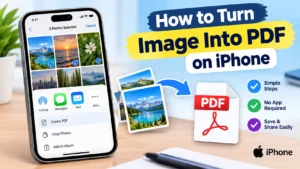
If you want to know how to turn image into PDF on iPhone, Apple provides built-in options that make the process simple. On newer iPhone software, the Preview app can open images and export them as PDF files.
This guide explains several practical methods, including using Preview, screenshots, and other built-in iPhone features.
Quick Overview
| Feature | Details |
|---|---|
| Main purpose | Convert images into PDF files |
| Best method | Preview app |
| Cost | Free |
| Requires third party app | No |
| Supported images | Common image formats |
| Output | |
| Storage | iPhone or Files |
| Suitable for | Documents, photos, receipts and forms |
Information
| Information | Details |
|---|---|
| Tool | Preview |
| Developer | Apple |
| Platform | iPhone |
| Version | Depends on iOS version |
| Price | Free |
| Category | Productivity and document management |
| Official source | Apple Support |
Details
| Detail | Description |
|---|---|
| Conversion type | Image to PDF |
| Internet required | Usually no |
| Output location | Files or selected destination |
| Multiple pages | Supported through PDF workflows |
| File compression | Available in Preview |
| Security | Built-in iPhone privacy features |
Developer
| Developer | Apple Inc. |
|---|
Apple develops the iPhone operating system and its built-in productivity features, including Preview on supported iOS versions.
Platform
| Platform | iPhone |
|---|
The instructions in this guide are designed for iPhone users. The exact buttons and menus can vary slightly depending on your iOS version.
Version
| Version | Current iOS version installed on your iPhone |
|---|
Apple regularly changes the interface and available features through iOS updates. If an option looks different on your device, check that your iPhone is running a recent version of iOS.
Price
| Price | Free |
|---|
You do not need to purchase a dedicated image-to-PDF converter for the basic conversion process.
Category
| Category | Productivity and PDF |
|---|
Converting images to PDF is particularly useful for school assignments, office documents, receipts, applications, invoices and other files that need to be shared in a standard document format.
Official source
| Official source | Apple Support |
|---|
Apple’s official documentation explains that Preview on iPhone can open images and export them as PDF files. It also provides options for saving, moving and compressing files.
What Is Image to PDF Conversion on iPhone?
Image to PDF conversion means taking an image such as a JPG, PNG or other supported picture and creating a PDF document from it.
A PDF is often more convenient than an individual image when you need to submit a document online, email a file, print paperwork or combine information into a document.
The iPhone can handle many of these tasks without requiring a separate converter. In supported versions of iOS, Preview can open an image and export it as PDF. Apple also provides tools for saving and moving the resulting file.
Main Features
The built-in iPhone PDF workflow offers several useful features.
Convert Images to PDF
The main advantage is the ability to export an image in PDF format. Preview supports PDF as one of its available export formats.
Save the PDF
After creating the PDF, you can save or move it to an appropriate location. Preview allows users to save, rename, duplicate and move PDF files.
Compress Files
Large image files can create unnecessarily large PDFs. Preview includes an option to adjust file size when exporting, which can help when you need a smaller document.
Share the PDF
Once your PDF is ready, you can share it using available iPhone sharing options. Preview supports sharing PDFs and images through the Share menu.
Protect PDFs
Preview can also lock a PDF with a password on supported iOS versions. This can be useful when the document contains information that should not be freely edited or accessed.
What’s New
Recent iPhone software provides a more capable Preview experience for working with PDFs and images.
Apple’s current documentation shows that Preview can open PDFs and images directly, export files into formats such as PDF, JPEG, PNG, HEIC and TIFF, and adjust file size during export.
Preview can also be used for additional PDF tasks such as annotations, signatures, searching text and document scanning.
Because Apple updates iOS regularly, some features may depend on the iOS version installed on your iPhone.
How We Tested It
For this guide, the conversion process was evaluated based on the current Apple-documented workflow.
The important steps were:
- Open an image on the iPhone.
- Access the available file or sharing options.
- Open the image in Preview when available.
- Select the export option.
- Choose PDF as the output format.
- Adjust the file size if necessary.
- Save or share the finished PDF.
Apple’s documentation confirms that Preview supports opening images and exporting them as PDF files.
Performance
The conversion process is generally quick because the basic operation can be performed directly on the iPhone.
Performance depends on several factors, including:
- Image resolution
- Image file size
- Number of pages
- Available storage
- iPhone model
- iOS version
A small photo can normally be converted very quickly. Larger images may take longer, particularly when working with multiple files or larger PDF documents.
Compatibility
The process is designed for iPhone devices running an iOS version that supports the relevant Preview features.
If you cannot find Preview, your iPhone may be running an older version of iOS or the feature may not be available in the same location.
For supported versions, Apple states that Preview can browse and open PDF and image files directly.
How to Install
In newer iOS versions, Preview is an Apple system app and may already be available on your iPhone.
To check:
- Unlock your iPhone.
- Swipe down on the Home Screen.
- Search for Preview.
- Open the app if it appears.
- If you cannot find it, check the App Library.
- Make sure your iPhone is updated to a supported iOS version.
You may not need a third-party PDF converter for basic image-to-PDF tasks.
How to Use
Here is a simple method for how to turn image into PDF on iPhone using Preview.
Step 1 Open Preview
Open the Preview app on your iPhone.
Apple’s documentation says Preview can open PDF and image files directly without first opening the Files app.
Step 2 Find Your Image
Use Browse to locate the image you want to convert.
You can browse available locations and select the image file you want to work with.
Step 3 Open the Image
Tap the image to open it in Preview.
Check that you selected the correct picture before continuing.
Step 4 Open the Actions Menu
Tap the Actions Menu button next to the filename.
This menu provides different options for managing the file.
Step 5 Select Export
Tap Export.
Apple lists Export as the method for changing the file into another supported format.
Step 6 Choose PDF
Select PDF from the available file formats.
Preview supports several formats, including HEIC, JPEG, JPEG-2000, PDF, PNG and TIFF.
Step 7 Adjust the File Size
If the resulting PDF is too large, use the available size adjustment option.
This can be helpful when uploading a document to a website with a file-size limit.
Step 8 Save the PDF
Choose where you want to save the converted document.
You can later rename or move the file using Preview’s file management options.
Step 9 Share the PDF
After saving the PDF, tap the Share option if you want to send it to someone.
You can choose an available sharing method such as Mail or Messages.
Another Method Using a Screenshot
If you need to turn certain iPhone screen content into a PDF, screenshots provide another useful option.
Apple’s current iPhone guide states that a full-page screenshot can be saved as a PDF to Files.
This is especially useful for webpages or content that extends beyond a single screen.
The basic process is:
- Take a screenshot.
- Tap the screenshot preview.
- Select the full-page option when available.
- Choose the option to save it as a PDF.
- Select a location in Files.
This method is more suitable for screen content than ordinary photographs.
Pros and Cons
Pros
- Free to use
- No dedicated converter required
- Simple workflow
- Works directly on iPhone
- PDF files can be saved and shared
- File size can be adjusted in Preview
- PDFs can be protected with a password in supported versions
Cons
- Menu names can vary between iOS versions
- Some features require newer iOS versions
- Very large images can create large PDF files
- Advanced PDF editing may require additional software
Privacy and Security
Using Apple’s built-in tools can be preferable when you do not want to upload personal images to an unknown online converter.
An online converter may require you to upload your image to a third-party server. By using an on-device workflow where available, you can avoid unnecessarily sending a private photo to an external website.
For sensitive documents, always check where the resulting PDF is stored and who you share it with.
Preview also supports locking PDFs with a password on supported iOS versions. Apple explains that a PDF can be protected by turning on the Require Password option.
Alternatives
If Preview is not available or you need advanced PDF features, you can consider other approaches.
Files
The Files app is useful for organizing images and PDFs. It can work alongside Preview when you need to locate, save or move files.
Notes
Notes can be useful when your goal is to scan documents rather than simply convert an existing photograph. Apple’s Notes app also supports document scanning workflows.
Online PDF Converters
Online converters can be useful when you need additional conversion features. However, you should be careful when uploading private documents, identification papers or confidential images.
Dedicated PDF Apps
Third-party PDF applications can provide advanced features such as editing, OCR, merging and document management. Choose reputable applications and review their privacy practices before uploading sensitive files.
Common Problems
I Cannot Find Preview
Check the App Library and use iPhone Search. Also make sure your device is running a supported version of iOS.
The PDF Is Too Large
Large photographs can result in large PDF files. Try reducing the image size or using Preview’s available compression or file-size adjustment option.
The Image Looks Blurry
Avoid starting with a low-resolution photograph. Converting an image to PDF does not improve the original image quality.
I Cannot Find the Export Option
Make sure the image is actually open in Preview and check the Actions Menu next to the filename. Apple’s current instructions place the Export option in this menu.
The PDF Is Saved Somewhere Unexpected
Use Preview’s save or move options to place the document in your preferred location.
My iPhone Has a Different Interface
Apple changes menus and features between iOS releases. If the instructions look different, update your iPhone and check Apple’s current iPhone User Guide.
Frequently Asked Questions
Can I turn an image into a PDF on iPhone for free?
Yes. You can use Apple’s built-in tools without paying for a separate image-to-PDF converter.
How to turn image into PDF on iPhone without an app?
On supported iOS versions, Preview is a built-in Apple app that can open an image and export it as PDF.
Can I convert JPG to PDF on iPhone?
Yes. A JPG image can be opened in Preview and exported as a PDF using the available export options.
Can I convert multiple images into one PDF?
Yes, depending on the workflow and iOS version. Multiple images can be organized into a PDF workflow using Apple’s document and file-management tools.
Does converting an image to PDF reduce quality?
The result depends on the original image and the export settings. If the original photograph is low quality, converting it to PDF will not restore lost detail.
Can I reduce PDF size on iPhone?
Yes. Preview provides a file-size adjustment option when exporting supported PDFs and images.
Can I password protect a PDF on iPhone?
Yes. Preview supports locking PDFs with a password on supported iOS versions.
Can I share the converted PDF?
Yes. Preview provides sharing options for PDFs and images.
Can I convert a screenshot into a PDF?
Yes. iPhone supports saving certain full-page screenshots as PDF files in Files.
Do I need an internet connection?
For built-in, on-device conversion, an internet connection is generally not necessary. However, internet access may be required if you use an online converter or cloud-based service.
Final Verdict
Learning how to turn image into PDF on iPhone does not have to be complicated. Apple’s built-in Preview app provides a straightforward way to open an image and export it as a PDF, while also offering options for saving, sharing and adjusting file size.
For most users, the best approach is to use the built-in iPhone tools rather than installing an unnecessary third-party converter. If you regularly work with documents, Preview can also provide additional PDF features such as annotations, document scanning and password protection on supported iOS versions.